Installation and Setup
Contact SupportThe following video will help you install the ST5 Temperature Sensors Kit
ST5 Product Unboxing Guide
How to install: ST5 Temperature Sensors Kit
The following video will help you install the ST5 Temperature Sensors Kit
Installation and Setup
Step 1. Check that all items are complete +++++++++++++++++++++++++++++++++++++++++++++++++++++++++++++++++++++++++++++++++++++++++++++
-
Before opening the package, check the integrity of the labels and seals on the package to ensure that you have not received a damaged product.
-
Open the package and please check the contents list to make sure you have received all necessary accessories. If there are any items are missing or damaged, please contact us(https://mocreo.com/service) .
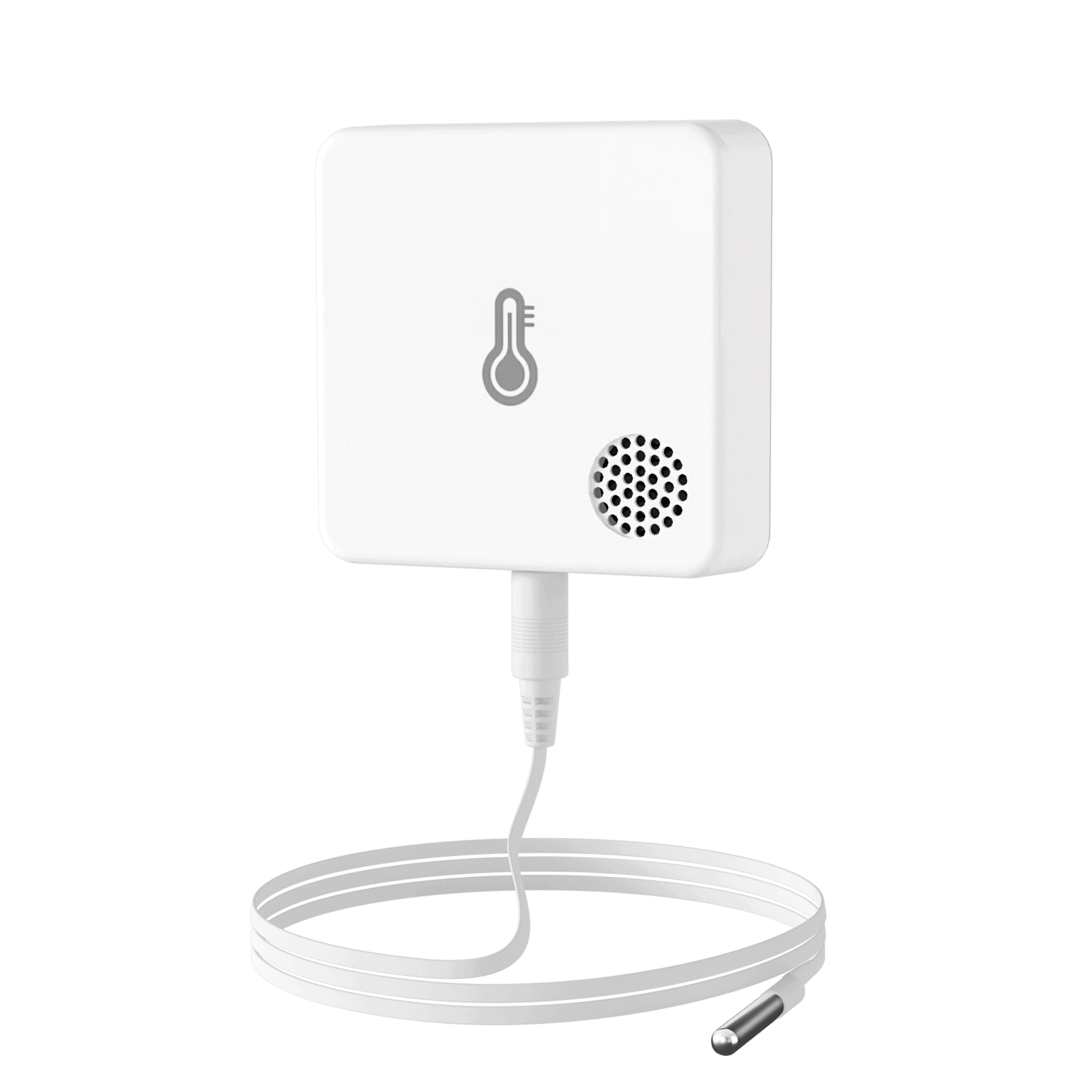 :align: center
:width: 600px
:height: 600px
:align: center
:width: 600px
:height: 600px
- Before starting the installation, check the contents list to make sure you have received all necessary accessories. Please contact us(https://mocreo.com/service) if any items are missing or damaged.
Step 2. Download the MOCREO App and register an account +++++++++++++++++++++++++++++++++++++++++++++++++++++++++++++++++++++++++++++++++++++++++++++
- Search "MOCREO Sensor" on Google Play/App Store or scan the QR code below to download the MOCREO Sensor App.
 :align: center
:width: 152px
:height: 152px
:align: center
:width: 152px
:height: 152px
-
Open MOCREO App and click "Create Account" to register a new account, please pay attention to entering the correct email format and password format.
-
If you have not received the confirmation email in your email, please click to check for troubleshooting.
Step 3. Add the MOCREO Hub ++++++++++++++++++++++++++++++++++++++++++++++++++++++
-
If you have previously completed adding the Hub and would like to continue to add the Sensor, then please go straight to step four.
-
Before adding and using a MOCREO device, you need to make sure that you have granted the necessary permissions to the MOCREO Sensor App, which can be found by clicking on Permissions .
-
Open the MOCREO App and log in to your newly registered account.
-
We recommend utilizing an Ethernet connection to link the Hub to the Local Area LAN for optimal performance.
-
Ethernet connectivity presents distinct advantages over Wi-Fi:
-
The pairing method is more convenient
-
More stable connection
-
-
-
Configure MOCREO Hub via Ethernet:
* ● During the Ethernet configuration of the Hub, please make sure that the network of the mobile device is on the same LAN as the network to which the Hub will be connected.
* Prepare an Ethernet cable for plugging into the Hub's LAN port.
* Before plugging in the Hub power cord, you will need to plug an Ethernet cable into the Hub's LAN port.
-
Check whether the Hub is powered on successfully (The Indicator Light is on to indicate successful power-on).
-
Enter the main page, click "+" in the upper right corner of the main page, enter the "Select Device" interface, select "Hub", an…948 tokens truncated…ensors](./st6-user-guide), ST9 Thermo-Hygrometer Sensors, ST10 Temperature Sensors, SW2 Water Leak Sensors
-