The following video will help you install the ST8 Temperature Sensors Kit
Contact Support:align: center :width: 645px :height: 304px
ST8 Product Unboxing Guide
How to install: ST8 Temperature Sensors Kit
The following video will help you install the ST8 Temperature Sensors Kit
Installation and Setup
Step 1. Check that all items are complete +++++++++++++++++++++++++++++++++++++++++++++++++++++++++++++++++++++++++++++++++++++++++++++
- Before opening the package, check the integrity of the labels and seals on the package to ensure that you have not received a damaged product.
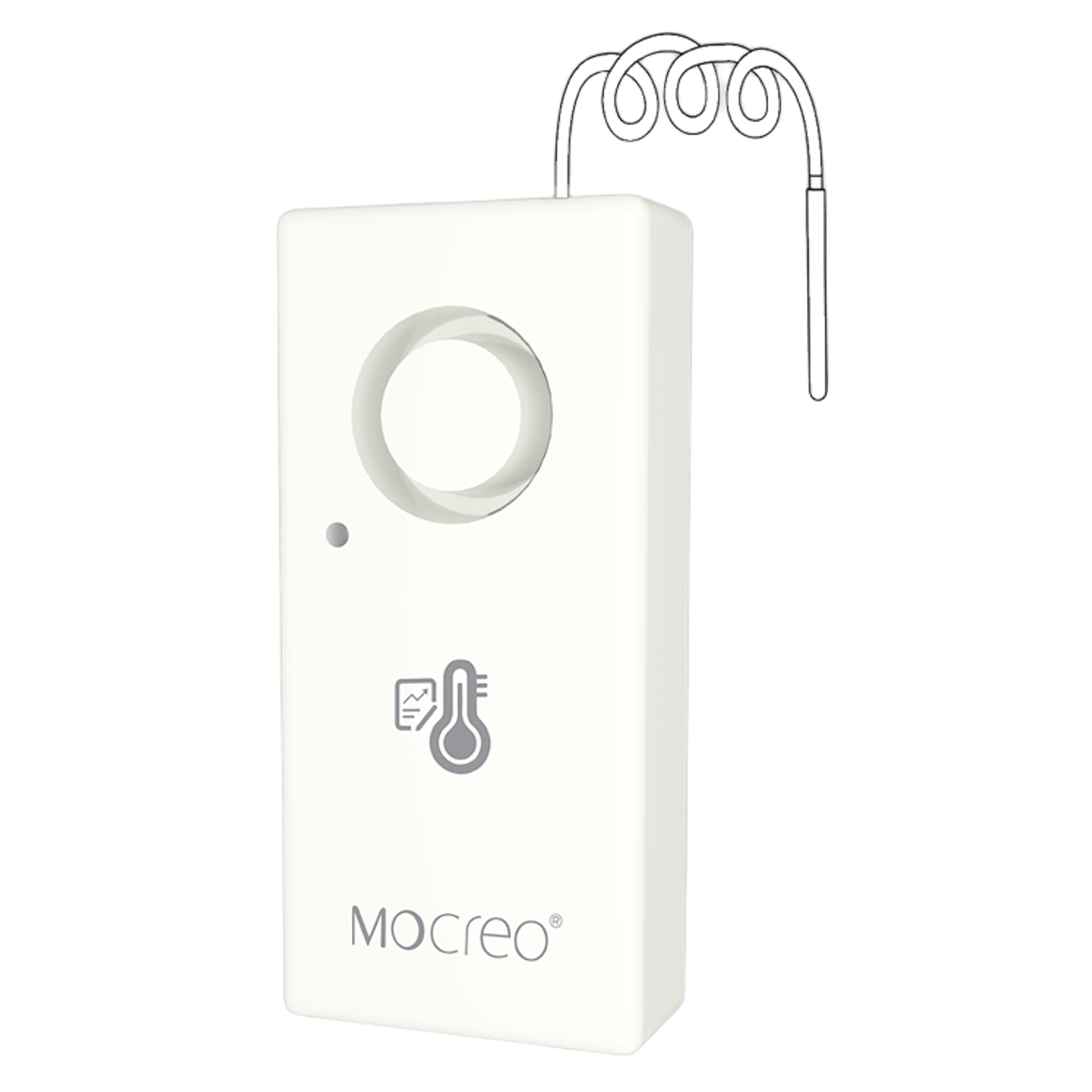
- Open the package and please check the contents list to make sure you have received all necessary accessories. If there are any items are missing or damaged, please contact us(https://mocreo.com/service) .
 :align: center
:width: 645px
:height: 304px
:align: center
:width: 645px
:height: 304px
- Before starting the installation, check the contents list to make sure you have received all necessary accessories. Please contact us(https://mocreo.com/service) if any items are missing or damaged.
Step 2. Download the MOCREO App and register an account +++++++++++++++++++++++++++++++++++++++++++++++++++++++++++++++++++++++++++++++++++++++++++++
- Search “MOCREO Sensor” on Google Play/App Store or scan the QR code below to download the MOCREO Sensor App.
 :align: center
:width: 152px
:height: 152px
:align: center
:width: 152px
:height: 152px
- Open MOCREO App and click “Create Account” to register a new account, please pay attention to entering the correct email format and password format.
- If you have not received the confirmation email in your email, please click to check for troubleshooting.
Step 3.Connect ST8 Temperature Sensor +++++++++++++++++++++++++++++++++++++++++++++++++++++++++++++++++++++++++++++++++++++++++++++
-
Before adding and using a MOCREO device, you need to make sure that you have granted the necessary permissions to the MOCREO Sensor App, which can be found by clicking on Permissions .
-
Switch the sensor's alarm switch to "ON" state.
-
Turn the main alarm switch of the ST8 sensor to "OFF" for at least 3 seconds. Then turn it back to "ON"
-
Open the MOCREO Sensor APP, click the "+" button in the upper right corner, select "Temperature & Humidity Sensor", select the "Temp Sensor - ST8", and add it.
Some configurations and reminders about ST8 Temperature Sensor
-
You can find the following functions on the ST8 details page:
- Locate the Device: The selected device will beep three times.
- Snooze the Alarm: Make ST8 stop alarming without disabling the alarm function of ST8.
-
You can find the following functions on the ST8 settings page:
-
Logging Interval (Default is 10 secs):
Set the time interval for temperature logging. If the sensor records more than 32,000 pieces of temperature data, the new measurement results will be covered starting from the earliest piece of temperature monitoring data. See the number of days required to record the hottest point. The following table shows the different measurement intervals and reference days required for 3,200 pieces of monitoring data.
-
FAQ +++++++++++++++++++++++++++++++++++++++++++++++++++++++++++++++++++++++++++++++++++++++++++++
-
Can ST8 Sensor be used for underwater temperature monitoring? The ST8 Sensor's external temperature probe can be placed in water, but the Sensor body is not waterproof.
-
If the monitored temperature exceeds the set threshold range, the sensor will beep once every second. There are several ways to turn it off:
-
Snooze: On the premise of not disabling the alarm function of ST8, make ST8 stop beeping this time. If the threshold is triggered again after the threshold is restored, it will beep again.
-
Disable local alarm (MOCREO Sensor APP)
-
Turn off the main alarm switch (sensor physical button)
-