LS1 App Addition Guide
Contact SupportIdentify the LS1 version from its SN, scan the setup QR code, then follow the matching BLE + LoRa or LoRa-only setup flow.
Before You Start
- LS1 sensor with the QR code on its label available
- The battery insulation tab still installed, or three working AAA batteries
- A signed-in MOCREO account with the selected asset containing an H5 Pro or H6 Pro LoRa Hub
- A phone with the MOCREO Smart App installed
Identify Your LS1 Version
Check the first eight characters of the Sensor SN:
0030AEA4: Older version with Bluetooth LE and LoRa.0030AE1x: New version with LoRa only. Thexrepresents the variable eighth character.
Both versions start by scanning the Sensor QR code. The steps after scanning are different.
Add LS1 in the MOCREO Smart App
- Pull out the battery insulation tab to power the LS1.
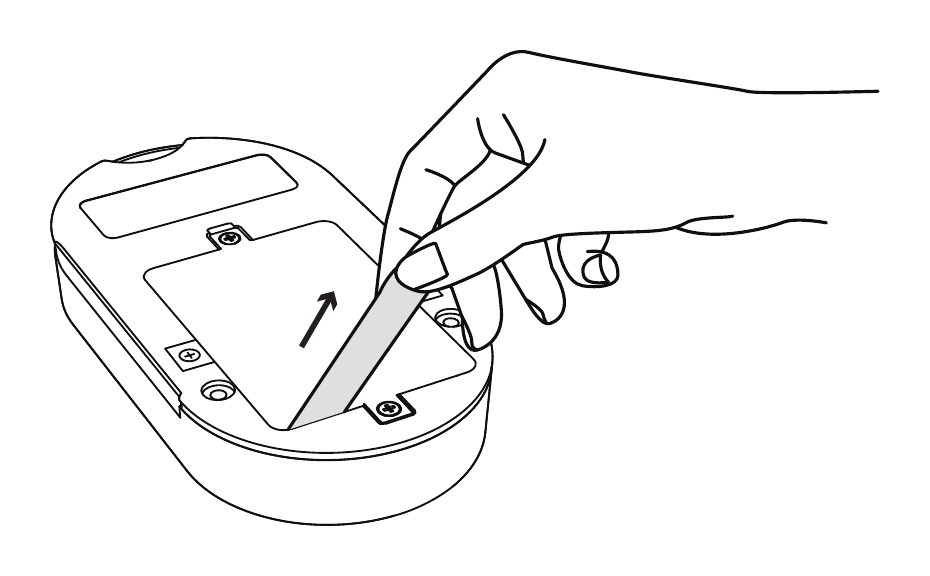
- Sign in to the MOCREO Smart App, select the asset that contains the H5 Pro or H6 Pro LoRa Hub, and confirm the Hub is online.
- Tap +, select LS1 Sensor, and scan the setup QR code on the LS1 label.
New-Version LS1 (0030AE1x)
- Scanning binds the Sensor to the selected asset. The Hub does not participate and does not yet recognize the Sensor at this stage.
- Continue until the App prompts you at the final setup step, then short-press the LS1 Sensor button for about 1 second. This activates the Sensor and establishes its communication link with the Hub.
- Follow the remaining in-app instructions.
Older LS1 (0030AEA4)
- After scanning, follow the legacy Bluetooth setup flow shown in the App.
- Enable Bluetooth and Location permissions on the phone, keep the Sensor close to the phone, and press and hold the Sensor button for about 3 seconds. The blue indicator flashes continuously while the Sensor is in Setup mode.
- Follow the remaining in-app instructions. When Bluetooth binding succeeds, the Sensor-to-Hub communication link is established automatically; do not perform the new-version 1-second activation step.
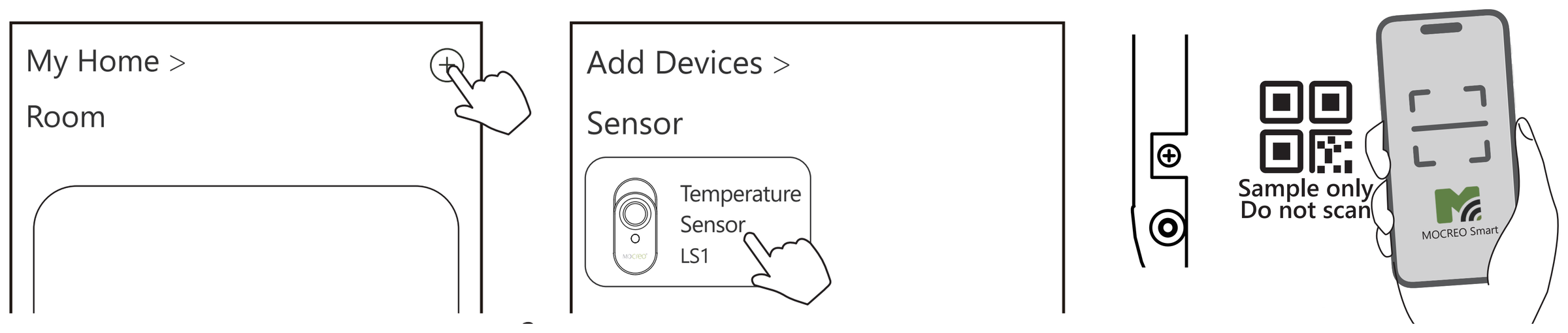
Button behavior differs by version
The new version does not support pressing and holding the button to enter Setup mode or restore factory settings, but it requires a 1-second short press after QR binding. On the older version, press and hold for about 3 seconds to enter Setup mode. Press and hold for 15 seconds to restore the older Sensor to factory settings when a reset is required.
Confirm the Device Was Added
Confirm that the LS1 appears in the App, shows as online, and reports a current temperature reading.
For mounting and placement, see the LS1 Deployment Guide.