MS2 App Addition Guide
Contact SupportKeep the MS2, Hub, and phone close together during setup.
Before You Start
- MS2 sensor with its setup QR code available
- A compatible Smart System Hub already online in the App
- A signed-in MOCREO account
- A phone with the MOCREO Smart App installed and Bluetooth enabled
Keep the MS2, Hub, and phone close together during setup.
Add MS2 in the MOCREO Smart App
- Pull out the battery tab on the MS2.
- Sign in to the MOCREO Smart App and confirm the Hub is online.
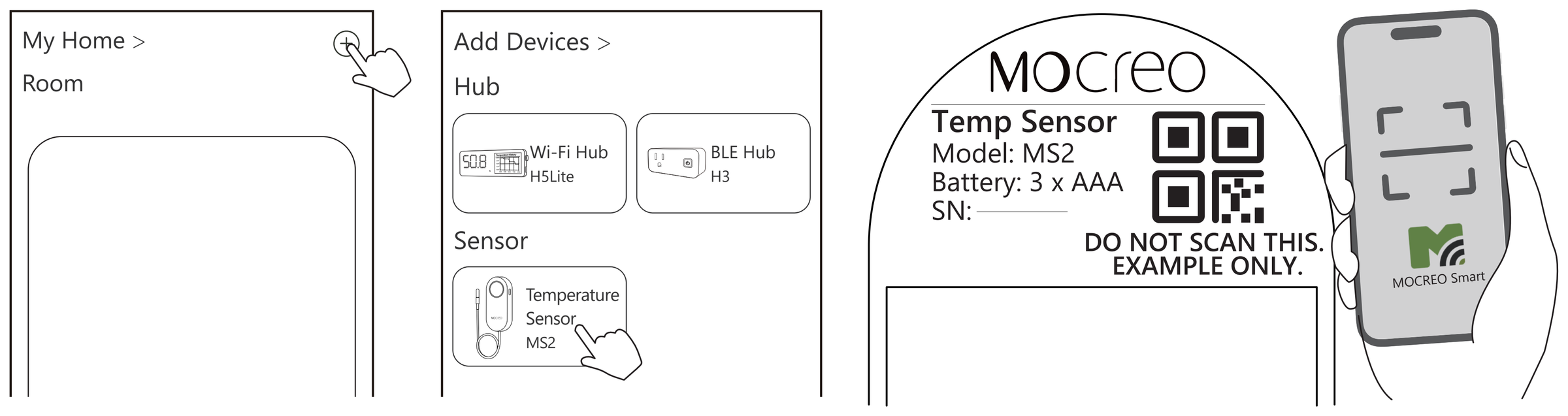
- Tap + and select MS2 Sensor. The App opens the QR-code page.
- Scan the Setup QR code on the product label. To use the fallback, tap Continue with Bluetooth setup instead. and keep the MS2 close to the phone during discovery.
- Follow the remaining in-app instructions.
When the App is not signed in, selecting MS2 opens Bluetooth discovery directly. Sign in before completing account and Hub addition.
Confirm the Device Was Added
Confirm that the MS2 appears in the App and reports a current temperature reading.
For body and probe placement, see the MS2 Deployment Guide.