Add Devices in the App
Contact SupportSetup guide for MOCREO H3, H5 Lite, H5 Pro, LB1, LD1, LS1, LS2, LS3, LW1, MS1, MS2, MS3, NS1, NS2, NS3, SD1, ST10, ST5, ST6, ST8, ST9, SW2 and SW3, covering preparation, installation, app pairing, and deployment checks.
Choose Your Hub
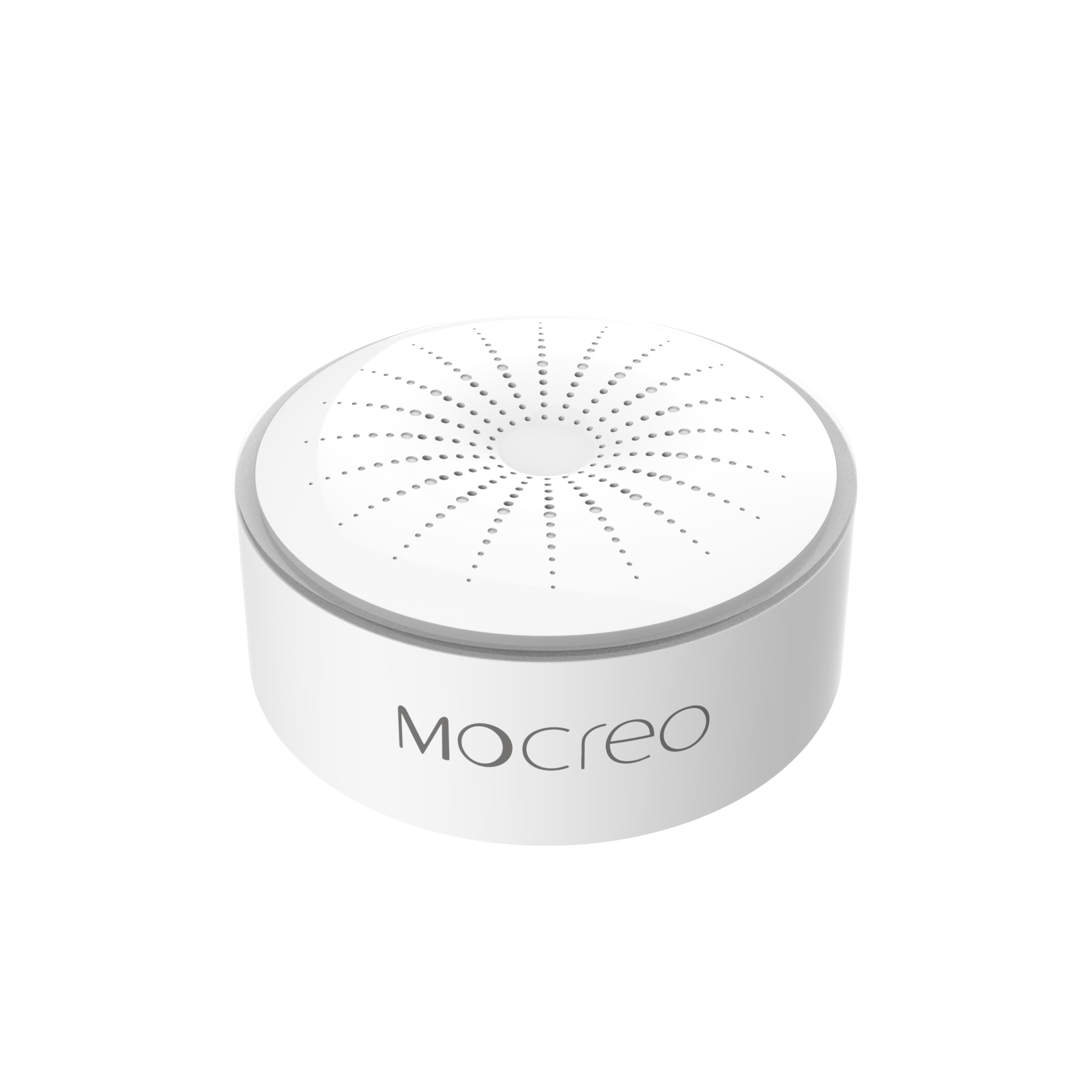
H5-Lite
Power the Hub, then add it in the MOCREO Smart App.
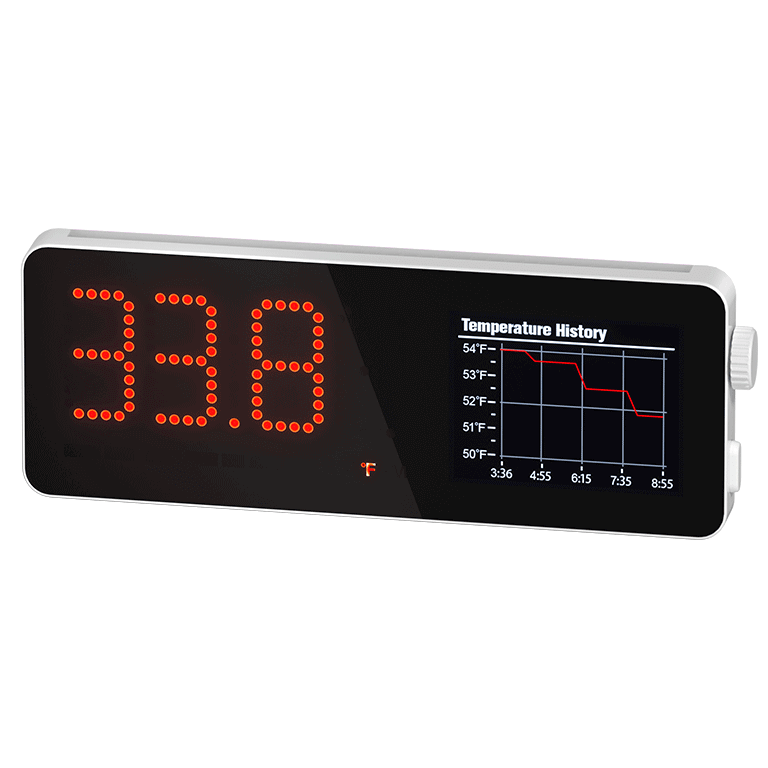
H5-Pro
Connect the LoRa antenna and power, then add the Hub in the App.
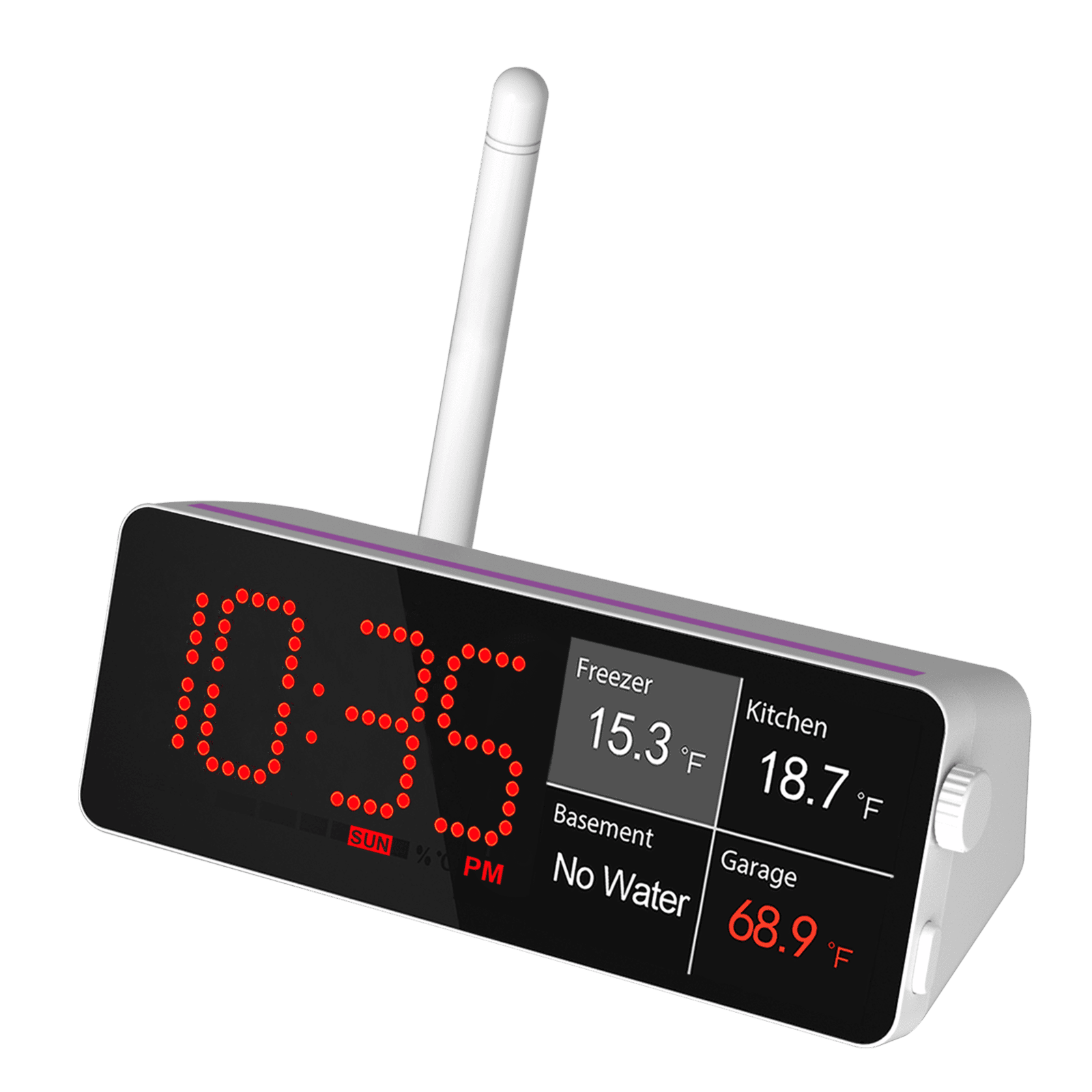
H3
Plug in the Hub, then add it in the MOCREO Smart App.
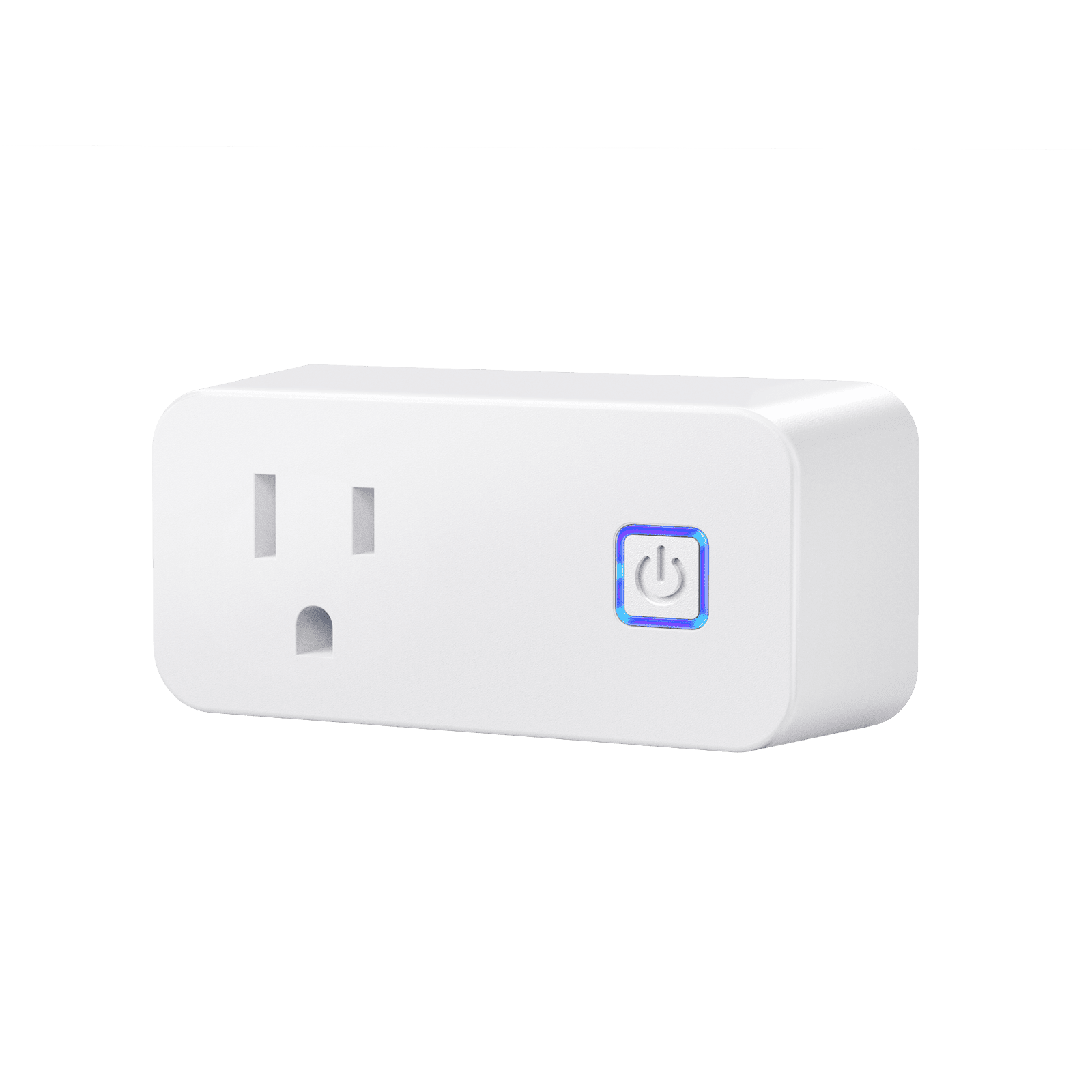
H6 Lite
Enable phone Bluetooth, plug in the Hub, and add it in the App.
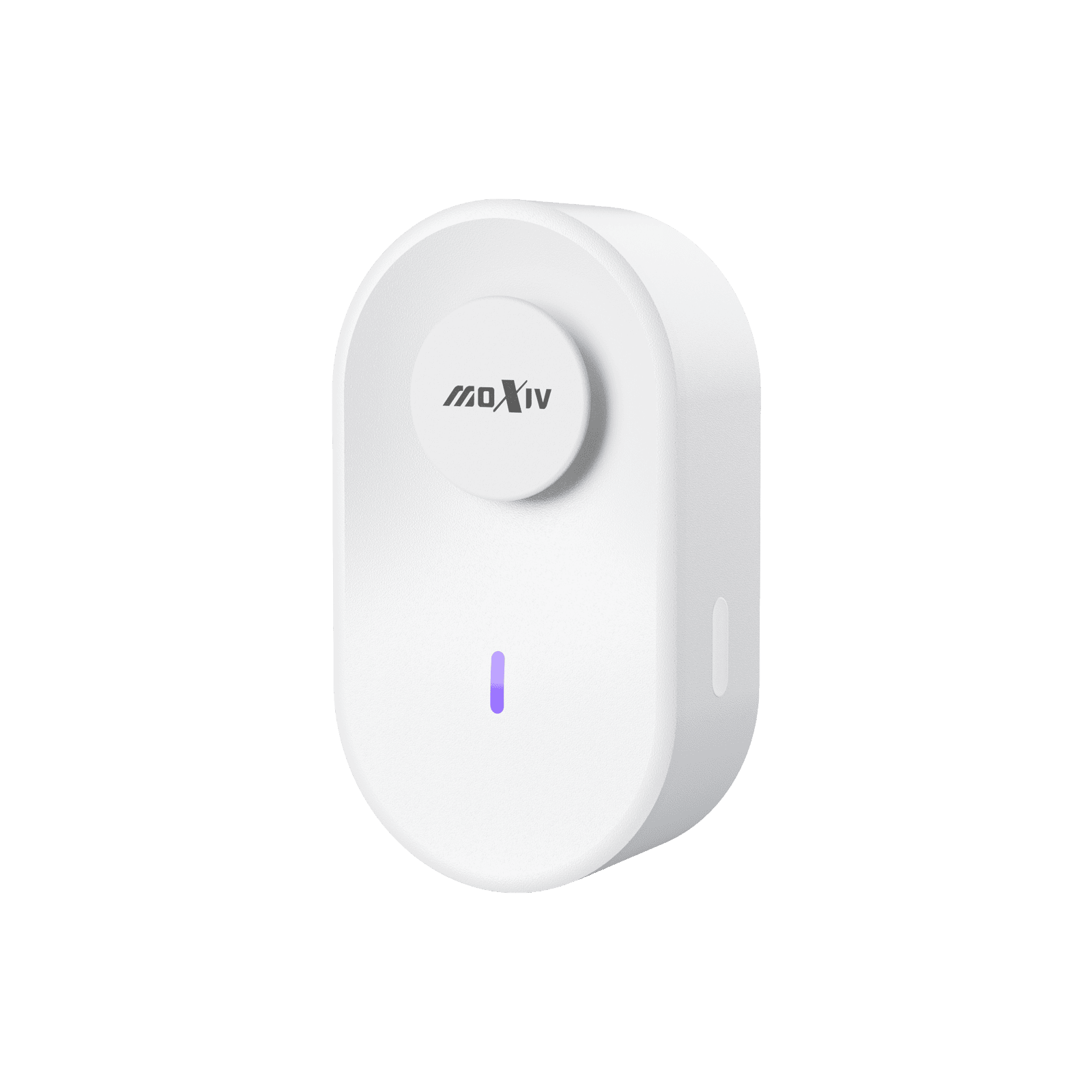
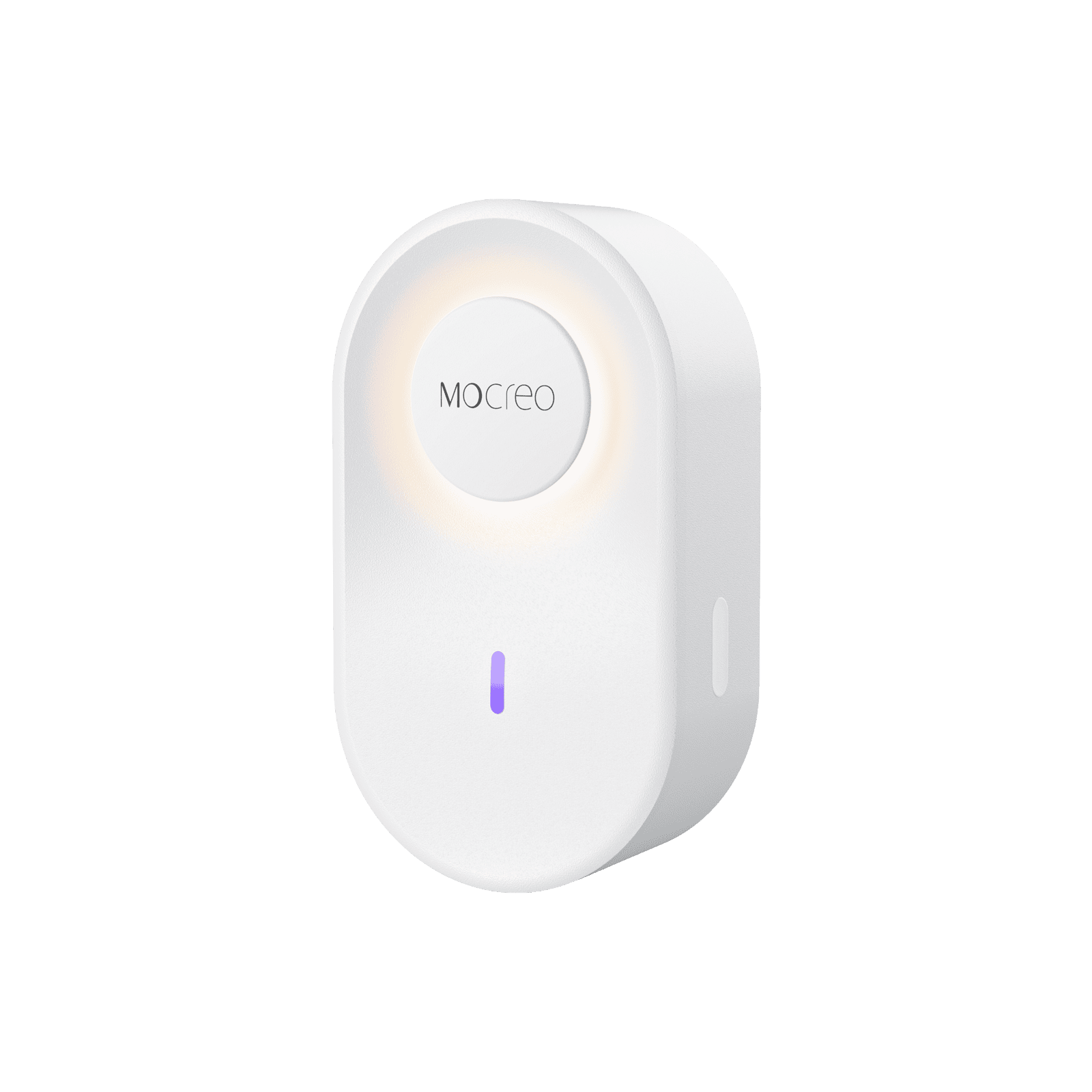
H6 Pro
Enable phone Bluetooth, plug in the LoRa Hub, and add it in the App.
Choose Your Sensor
On Home, tap [+] to open Add Devices, then select the exact model. The App opens the setup flow for that model; there is no standalone Scan entry.
| Addition Method | Sensor Models | What Happens |
|---|---|---|
| QR code is the only entry | LW1, LD1, LB1 | Select the model, then scan the Setup QR code on its label. These models do not have a Bluetooth-discovery path. |
| QR entry; older version continues with Bluetooth | LS1, LS2 | New versions (0030AE1x, LoRa only) can only be added by QR code. Older versions (0030AEA4) start with the QR code, then continue through Bluetooth setup. |
| QR preferred with Bluetooth fallback | MS2, MS3 | On the QR page, you can tap Continue with Bluetooth setup instead. When the App is not signed in, selecting the model opens Bluetooth discovery directly. |
| Automatic Bluetooth discovery | ST5, ST6, ST9, ST10, SD1, LS3, SW2, SW3 | Selecting the model opens Bluetooth discovery. Most models must first be placed in Setup mode as described in their addition guide. SD1 also has a QR-code fallback. |
| Legacy Bluetooth addition | MS1, ST8 | These models use the legacy scan page instead of automatic discovery. Turn the ST8 side switch to ON, or press and hold the MS1 button for 3 seconds. |
| Bluetooth-assisted Wi-Fi setup | NS1, NS2, NS3 | Put the Sensor in Setup mode, then use the App to configure Wi-Fi. These models do not require a Hub or a QR-code scan. |
Account and LoRa Hub requirements
Sign in to your MOCREO account before adding any Sensor except ST5, ST6, ST8, ST9, ST10, and MS1. To add a LoRa Sensor, the selected asset must already contain an H5 Pro or H6 Pro LoRa Hub.
ST5
Legacy temperature sensor; requires an online Smart System Hub.
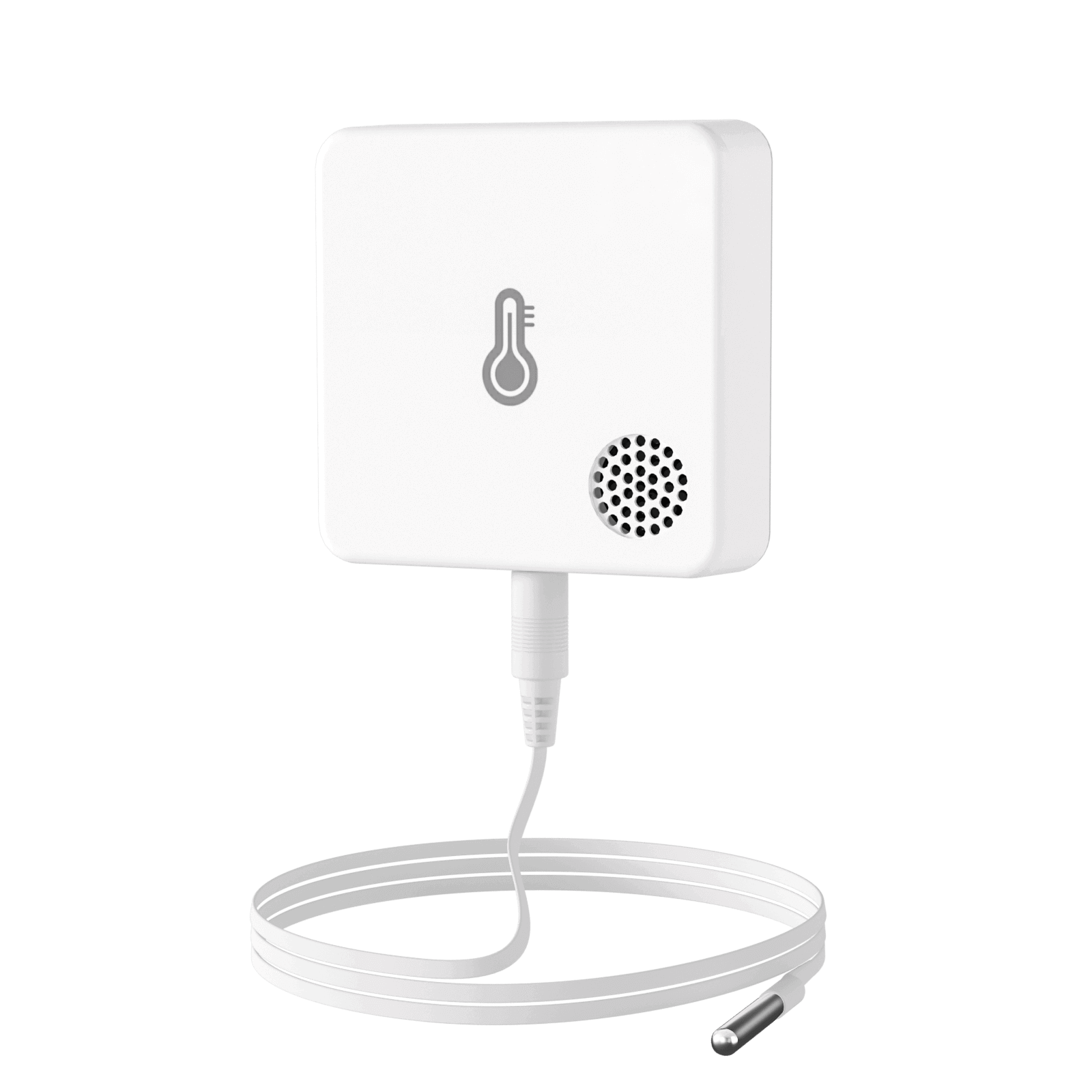
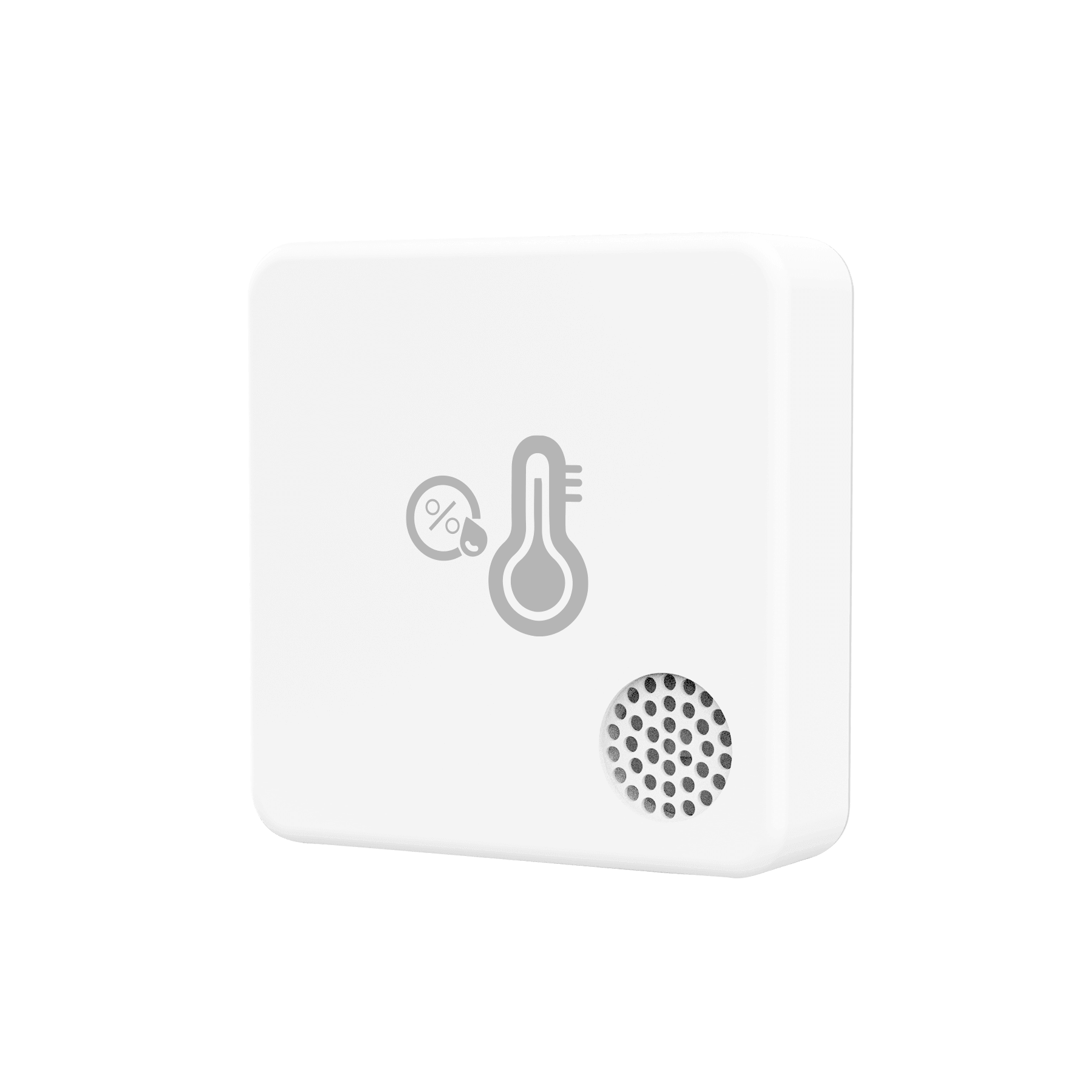
ST6
Temperature and humidity sensor; requires an online Smart System Hub.
ST8
Turn it on, then add it through the legacy Bluetooth scan page.
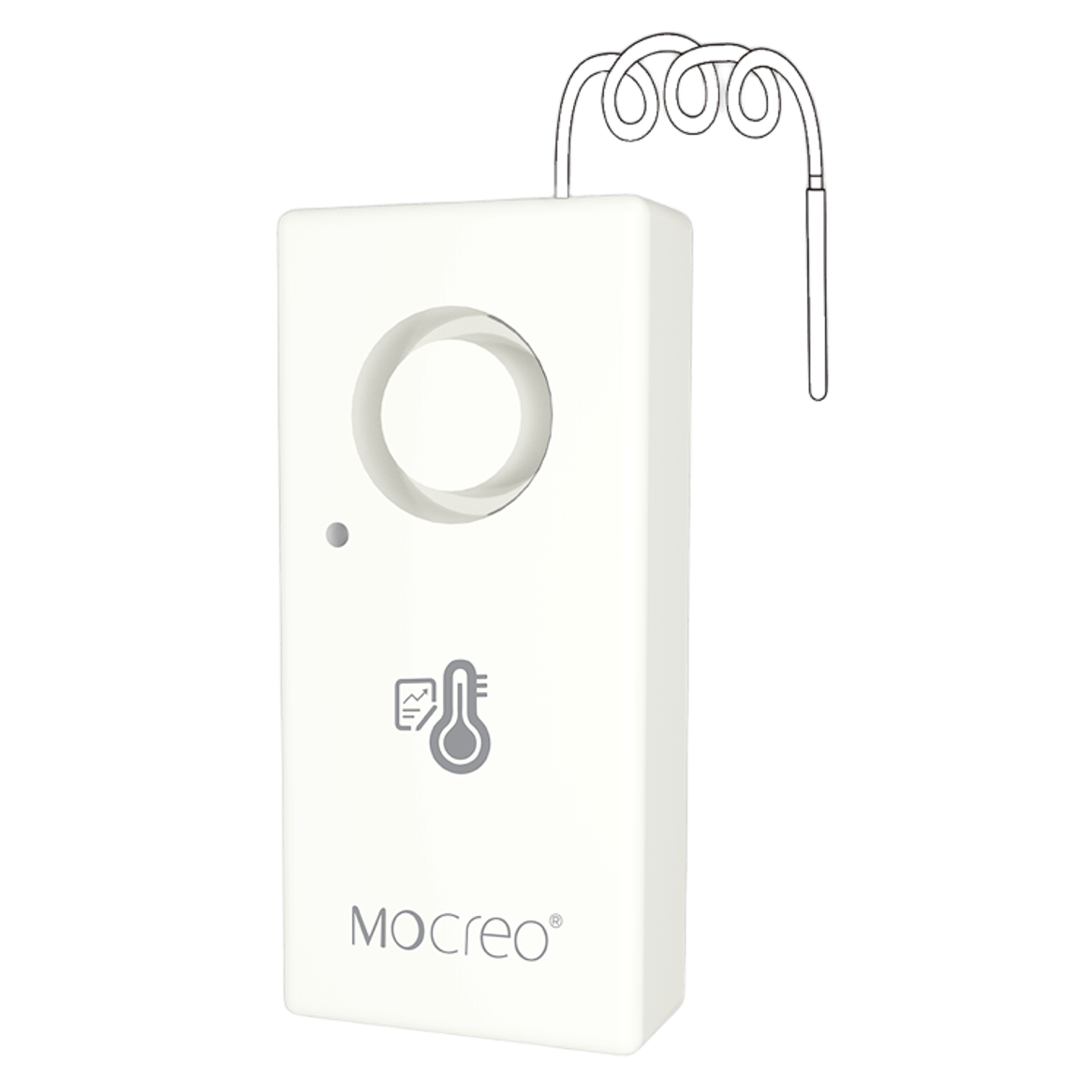
ST9
Climate sensor with probe; requires an online Smart System Hub.
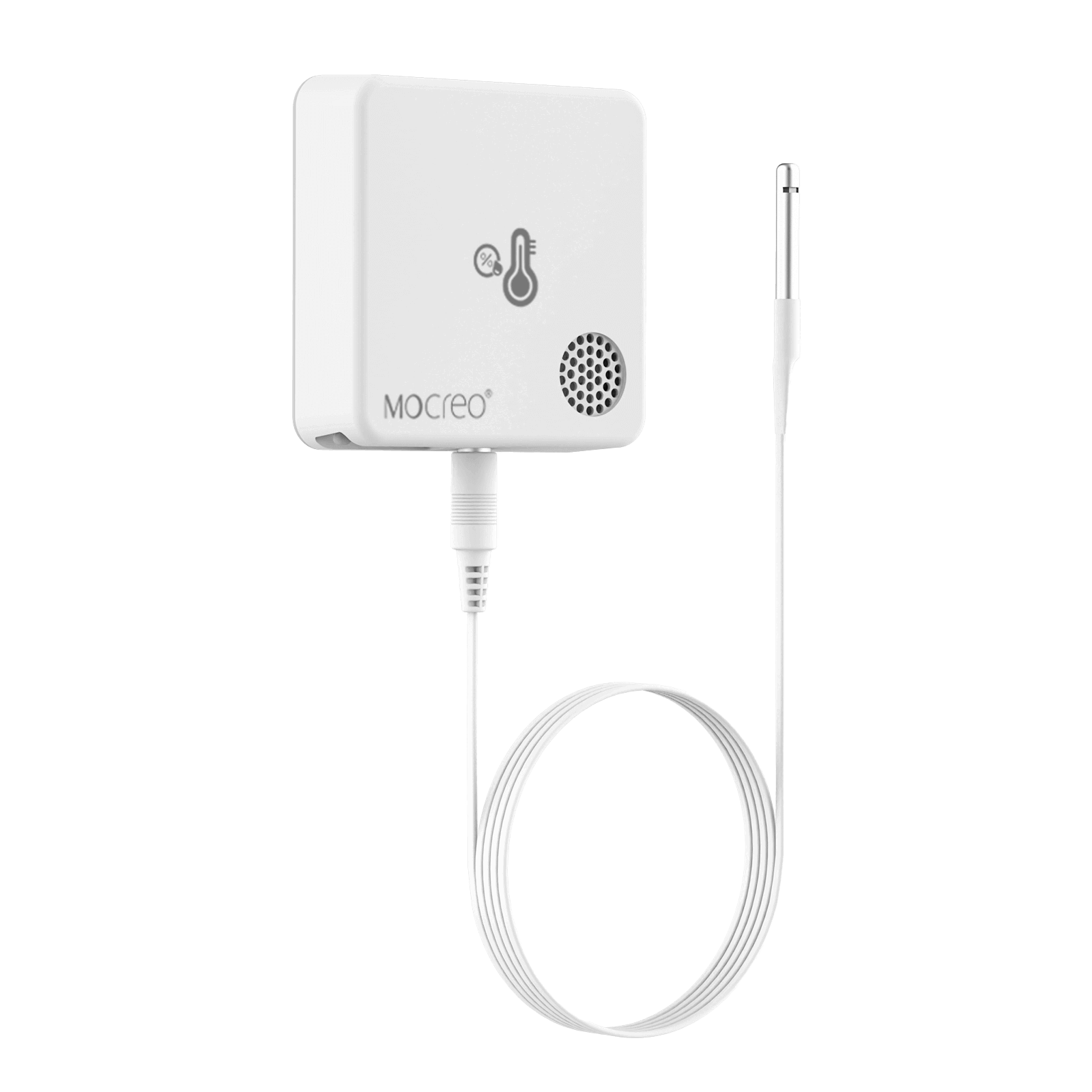
ST10
Ultra-low-temperature sensor; requires an online Smart System Hub.
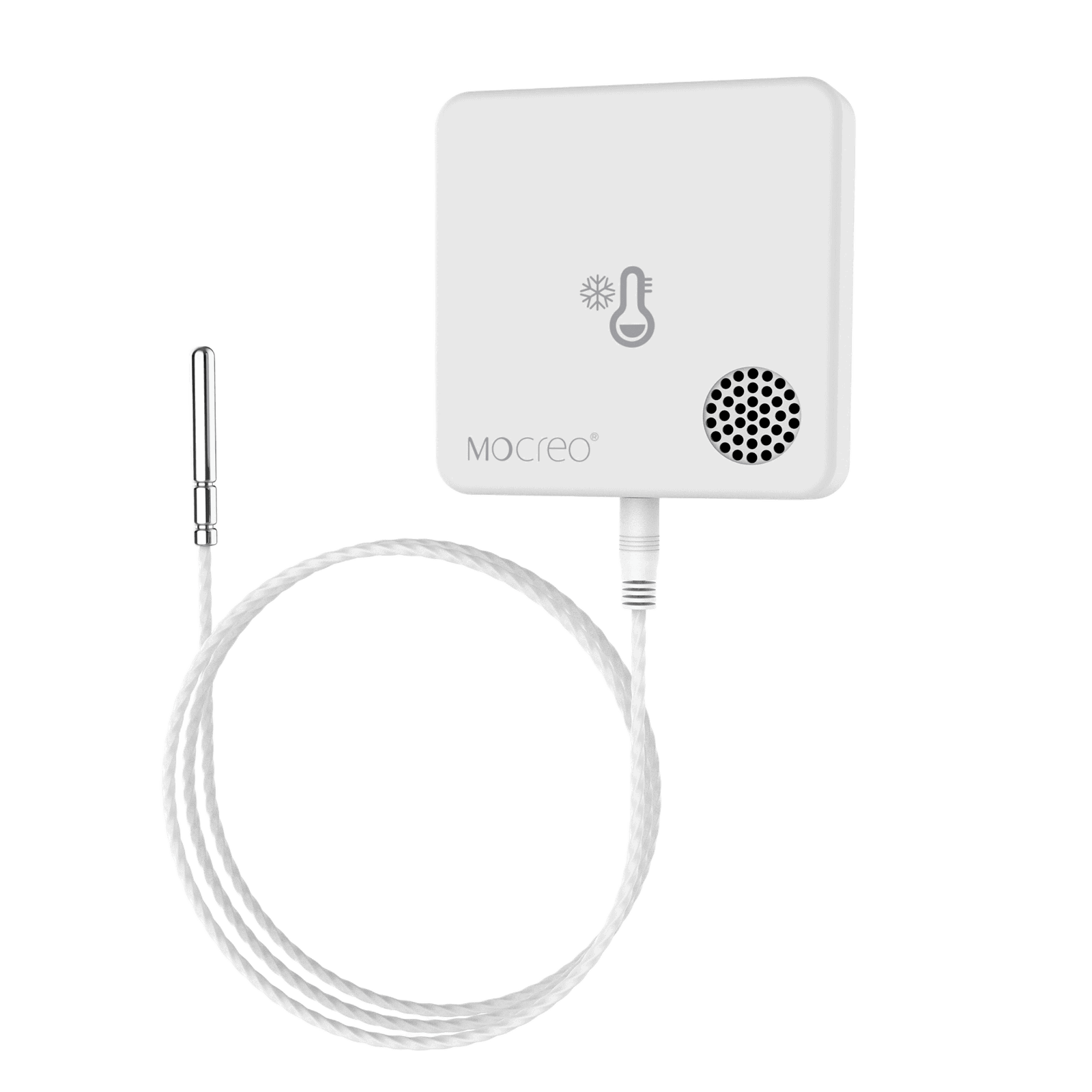
MS1
Hold Setup for 3 seconds, then use the legacy Bluetooth scan page.
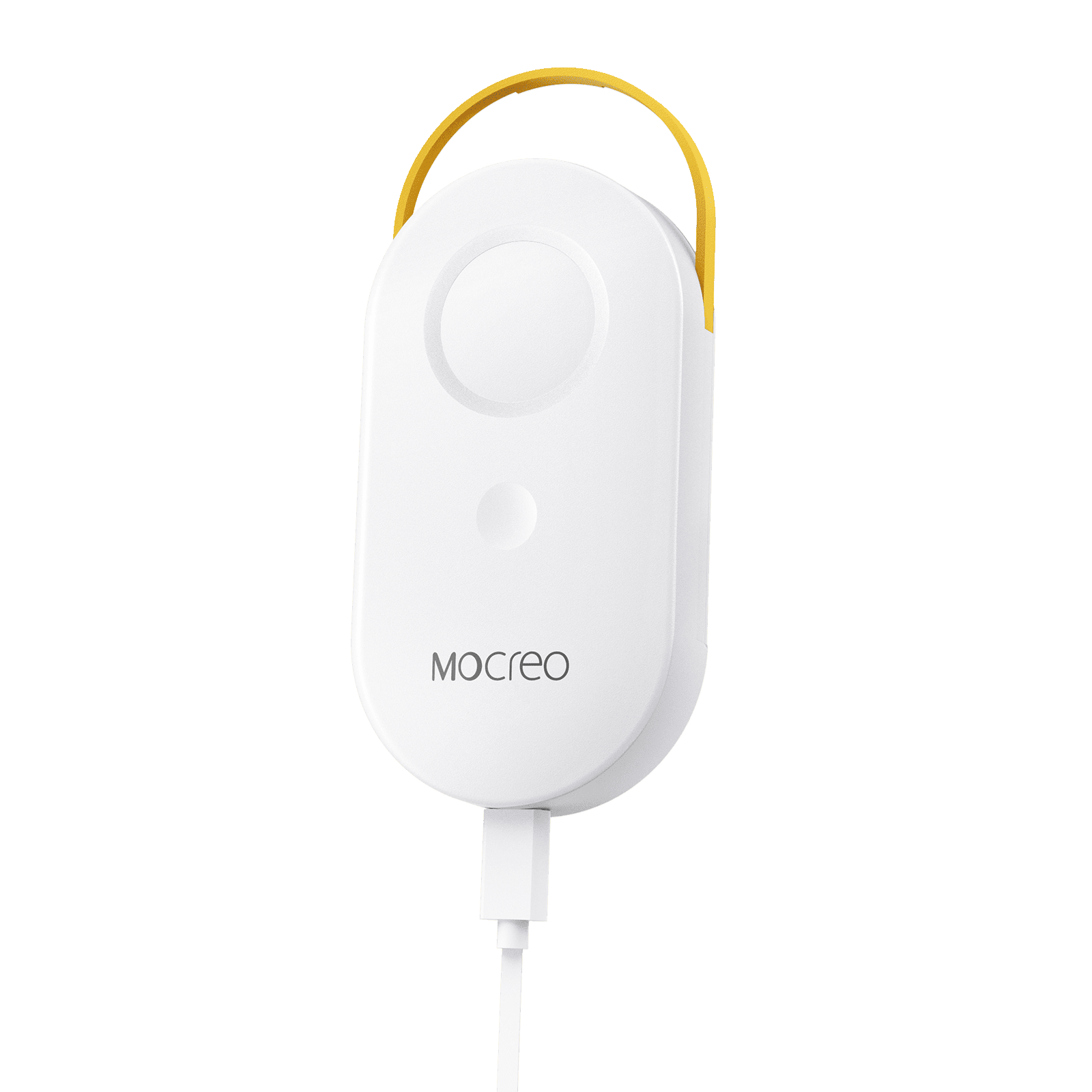
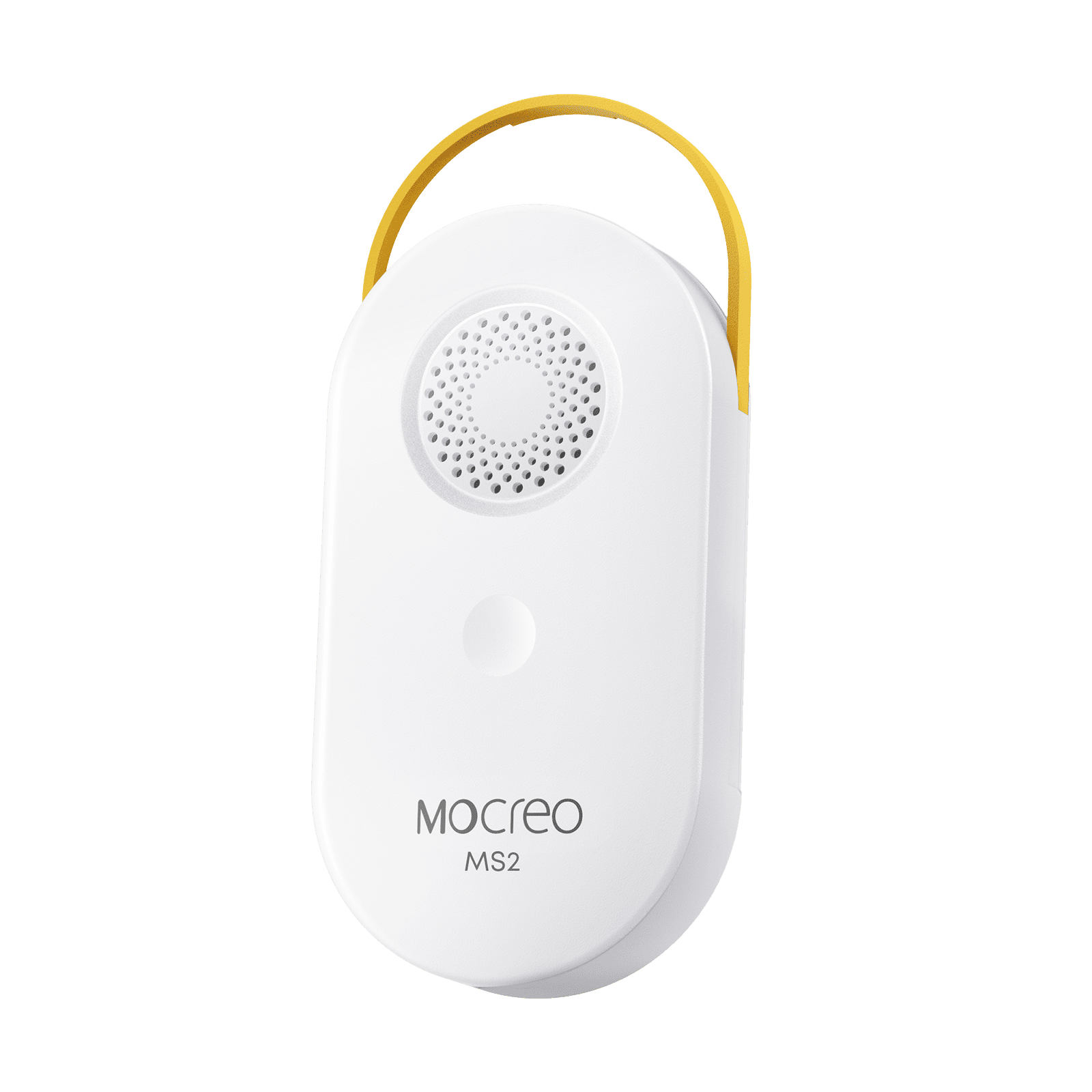
MS2
Scan its Setup QR code first, with Bluetooth discovery as a fallback.
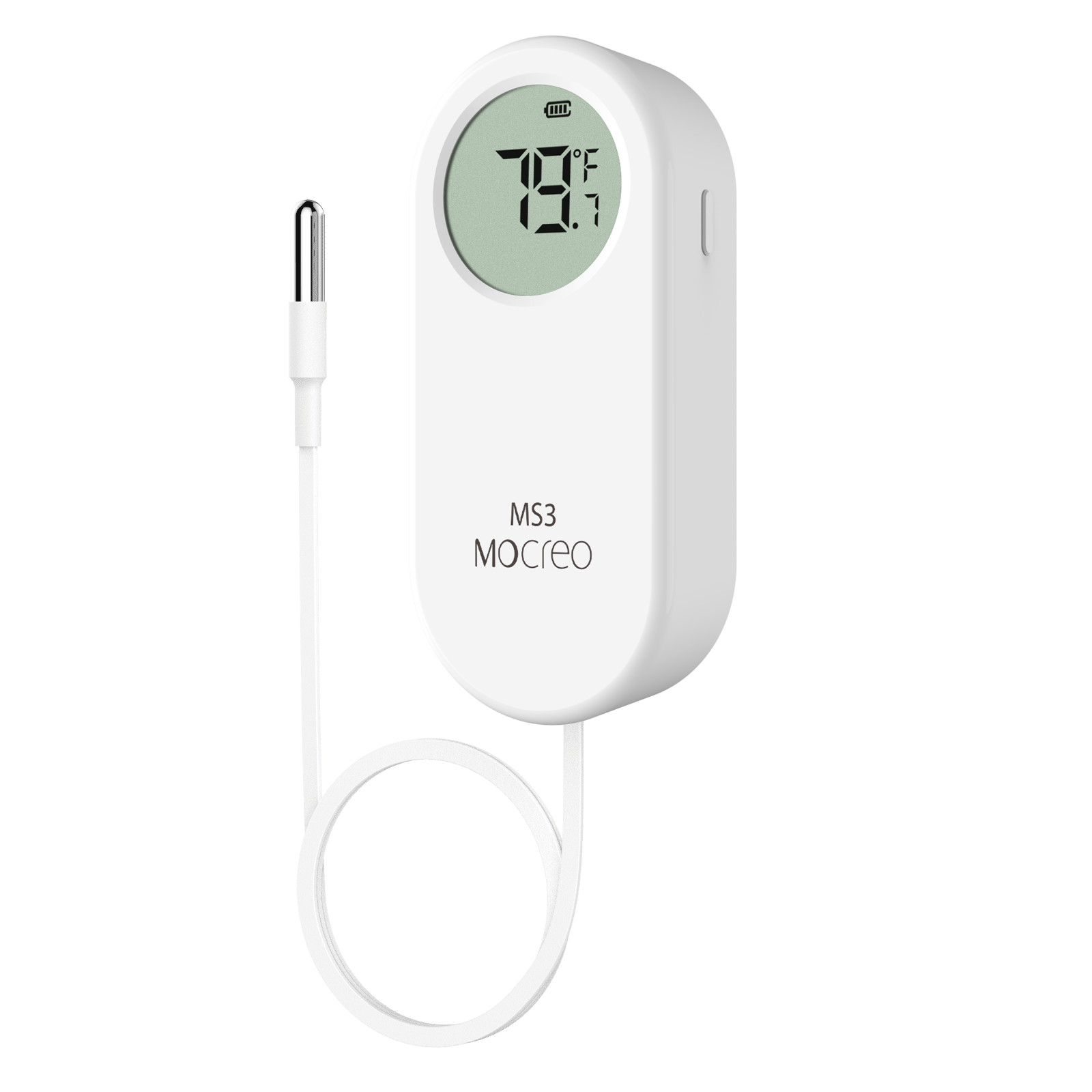
MS3
Scan its Setup QR code first, with Bluetooth discovery as a fallback.
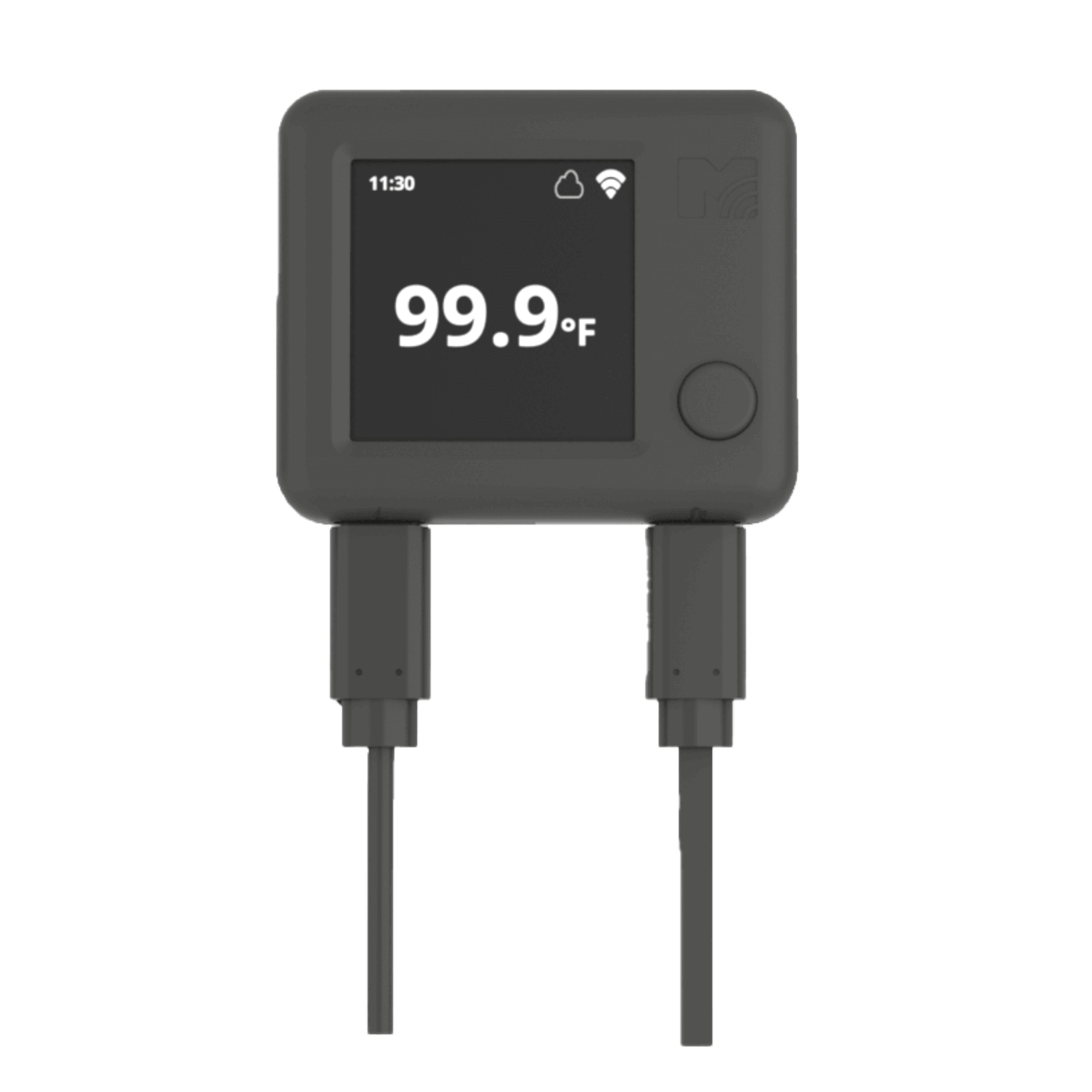
NS1
Direct Wi-Fi sensor; phone Bluetooth is used during App addition.
NS2
Direct Wi-Fi climate sensor; phone Bluetooth is used during addition.
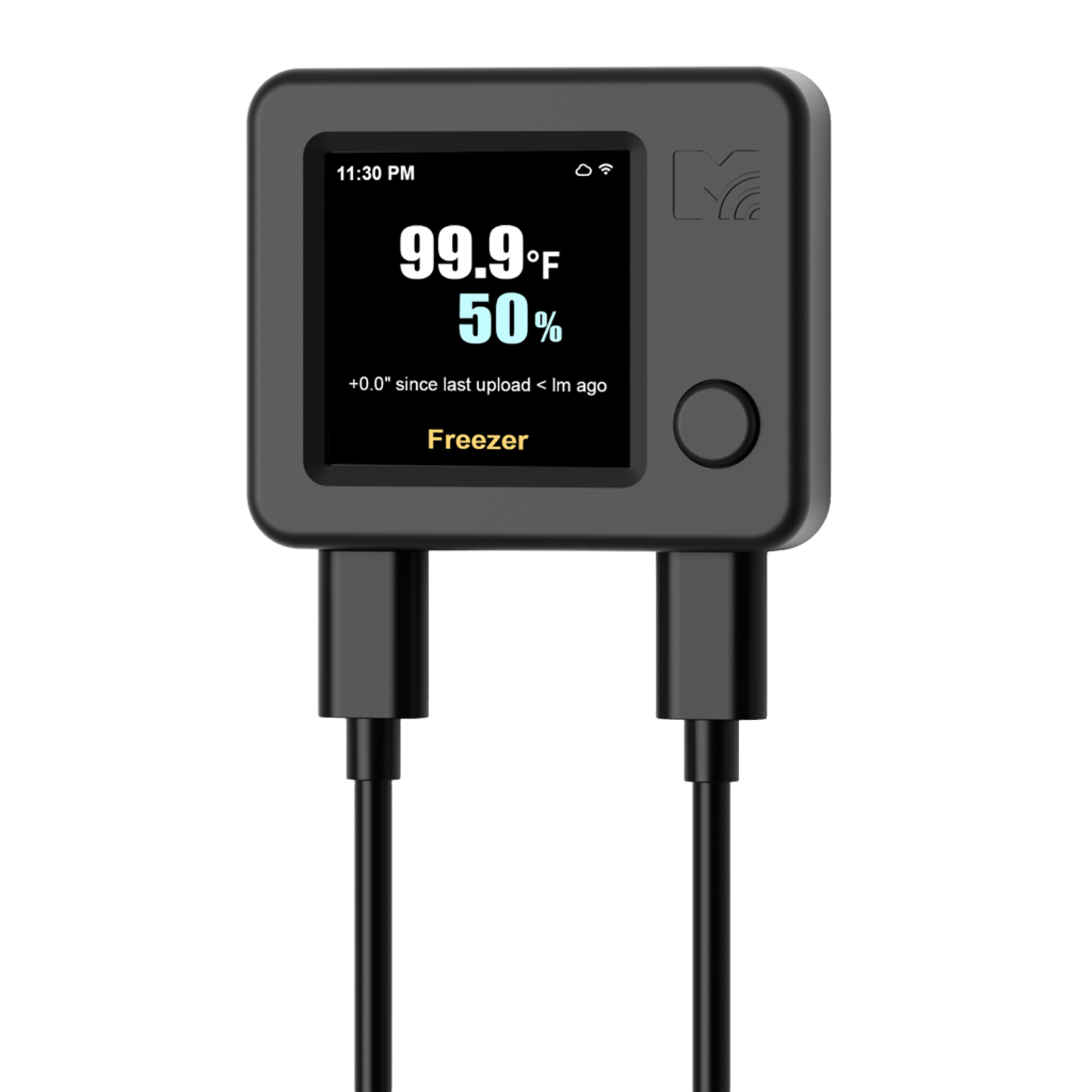
NS3
Direct Wi-Fi dual-probe sensor; no MOCREO Hub is required.
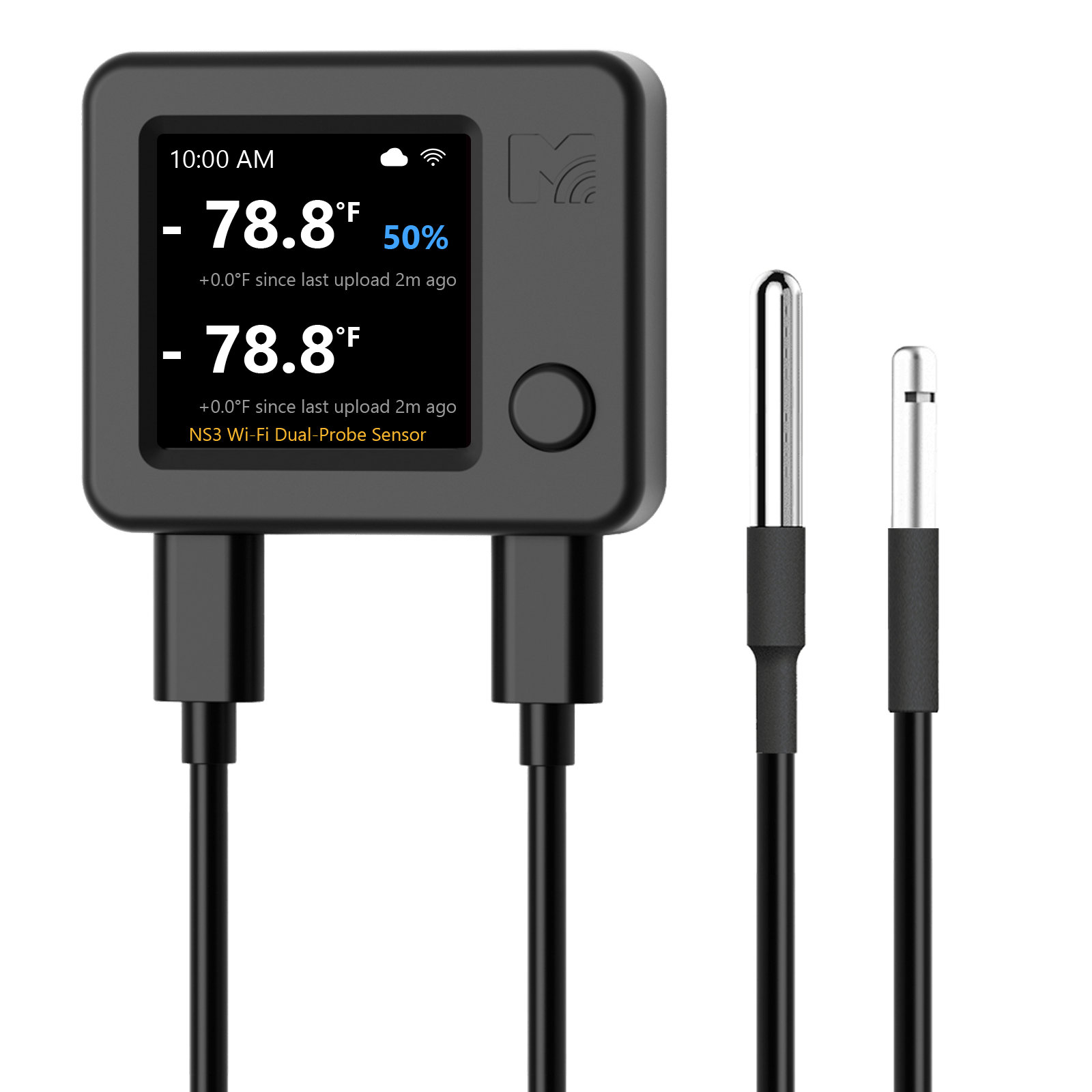
SD1
Uses automatic Bluetooth discovery, with a Setup QR-code fallback.
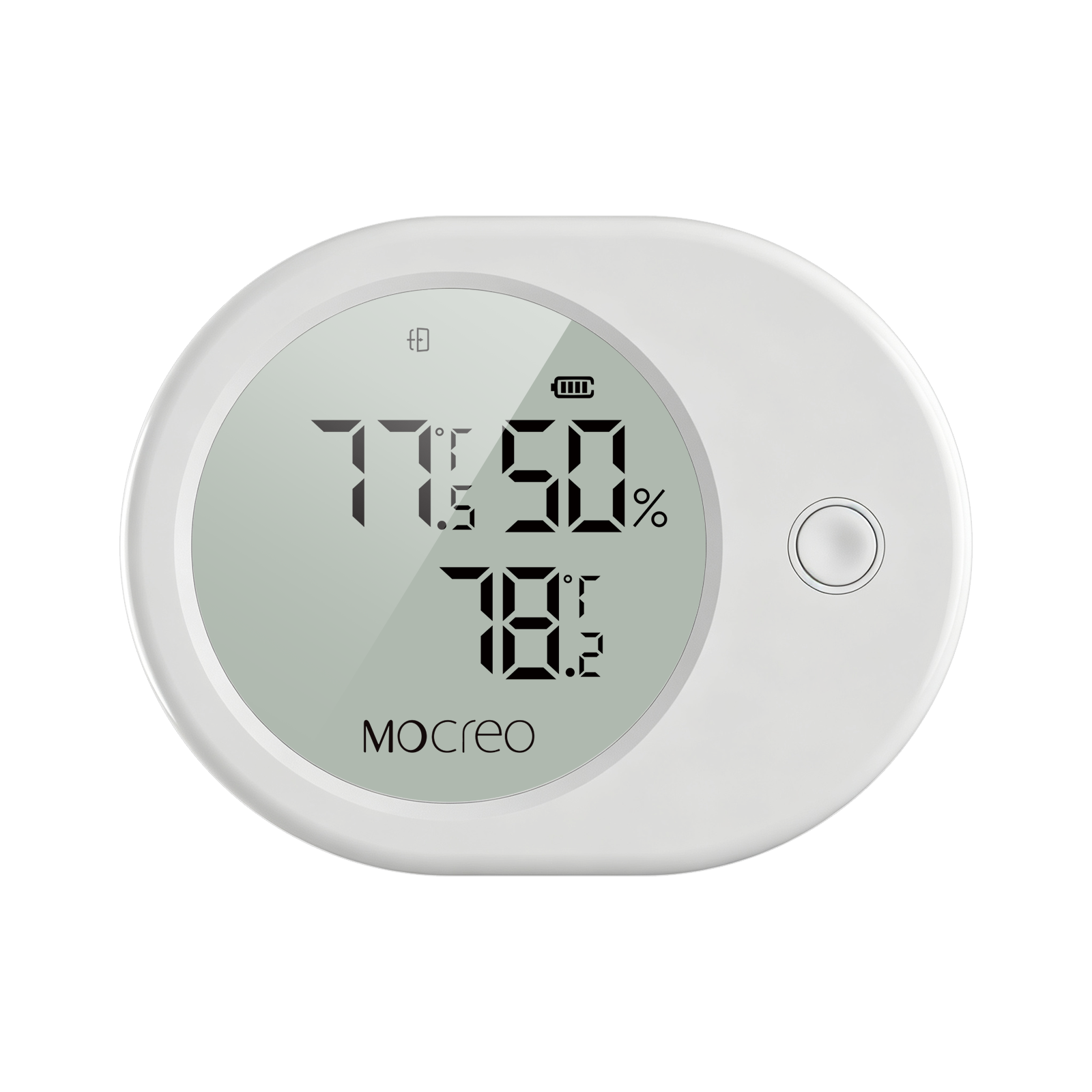
LS1
Long-range sensor; add it by scanning its label QR code.
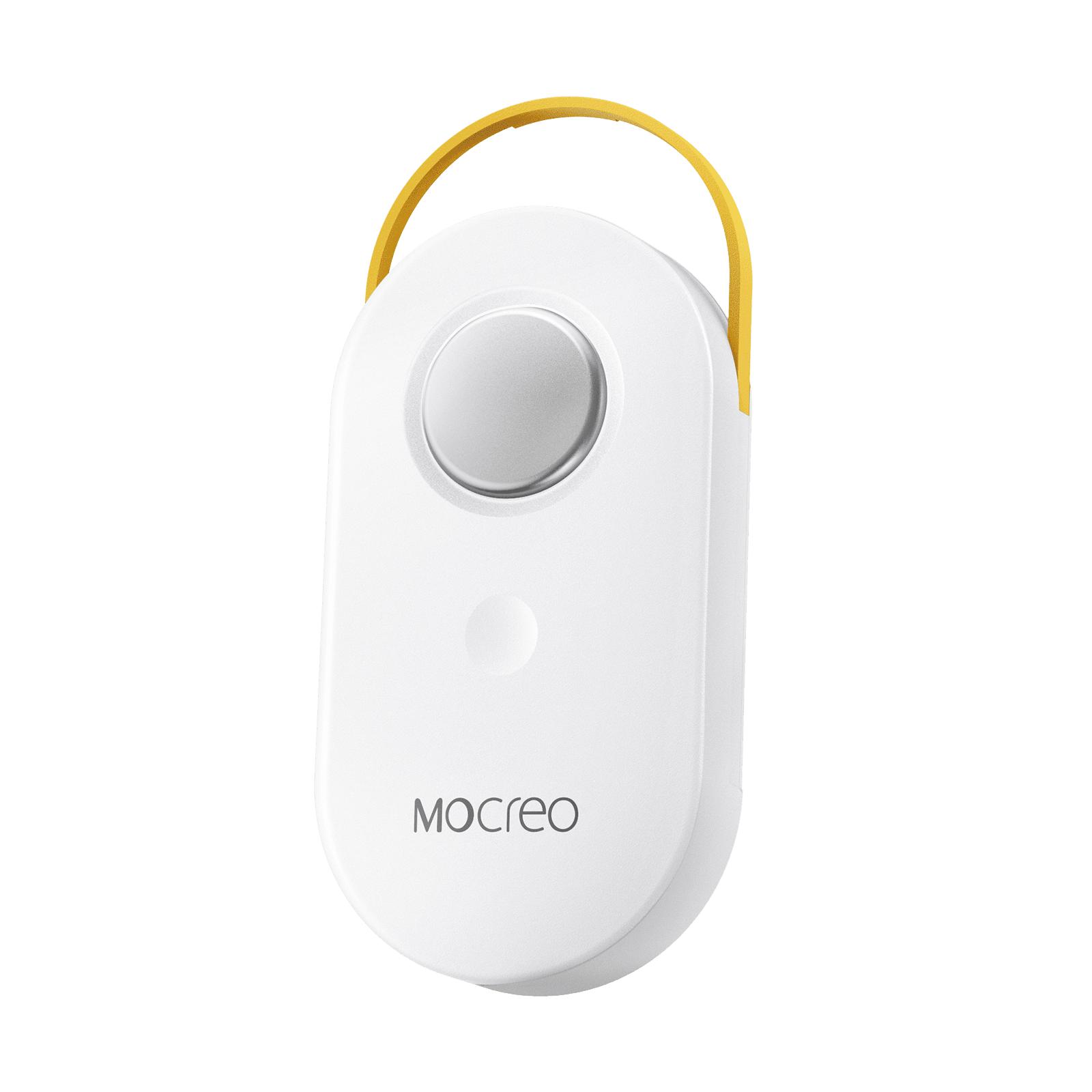
LS2
Long-range probe sensor; add it by scanning its label QR code.
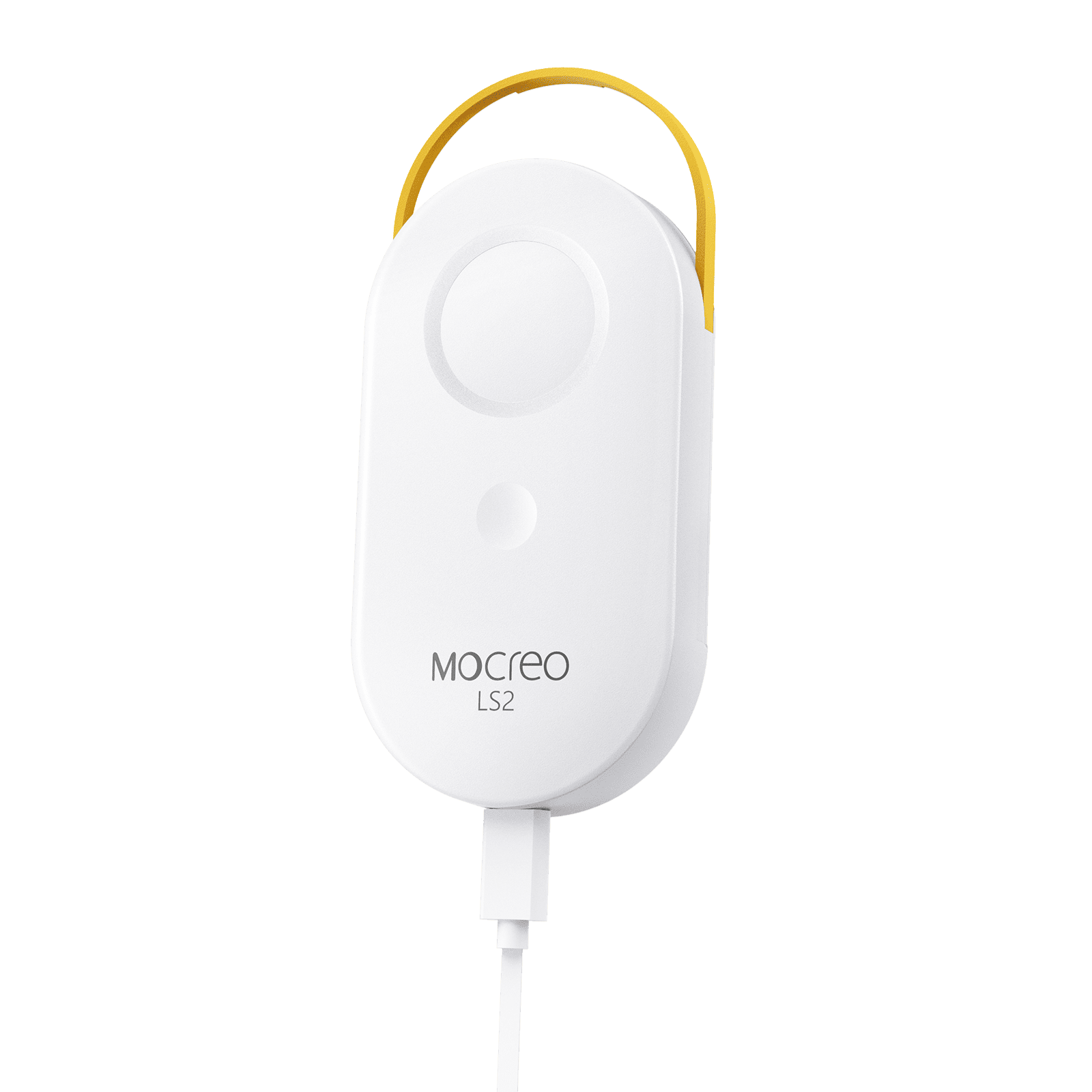
LS3
Long-range climate sensor; requires an H5-Pro or H6 Pro Hub.
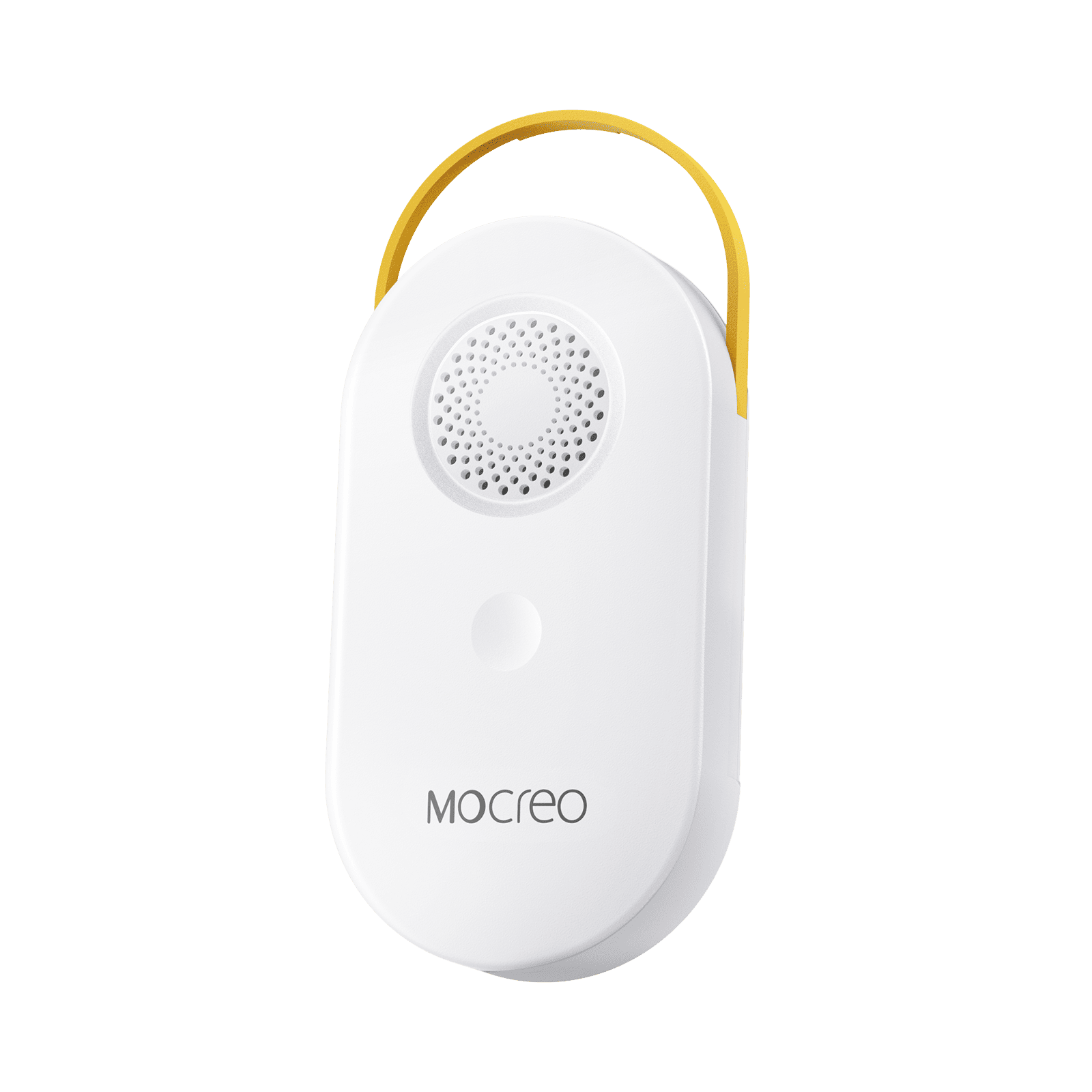
SW2
Water-leak sensor; requires an online Smart System Hub.
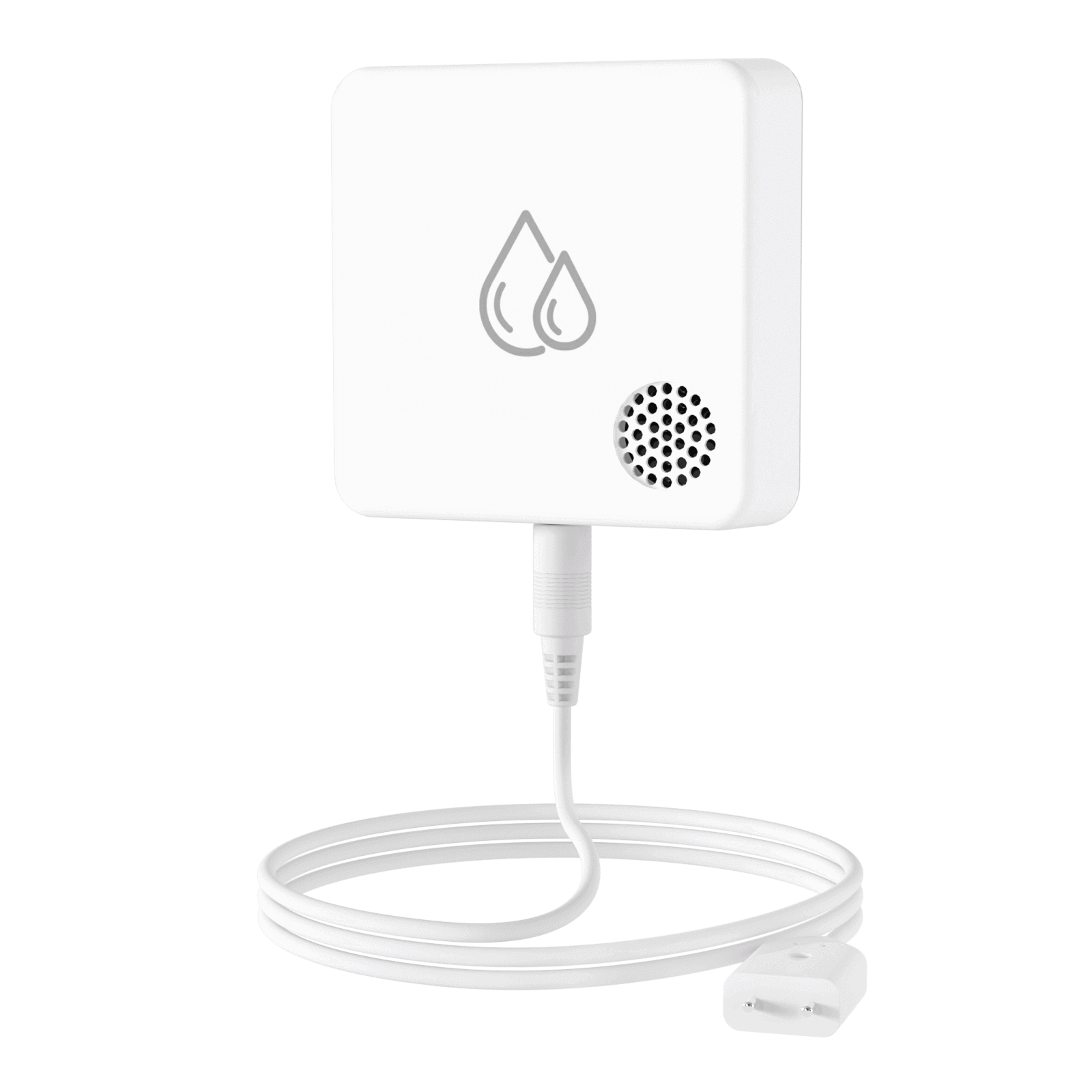
SW3
Bluetooth LE water-leak sensor for the H6 Lite Hub.
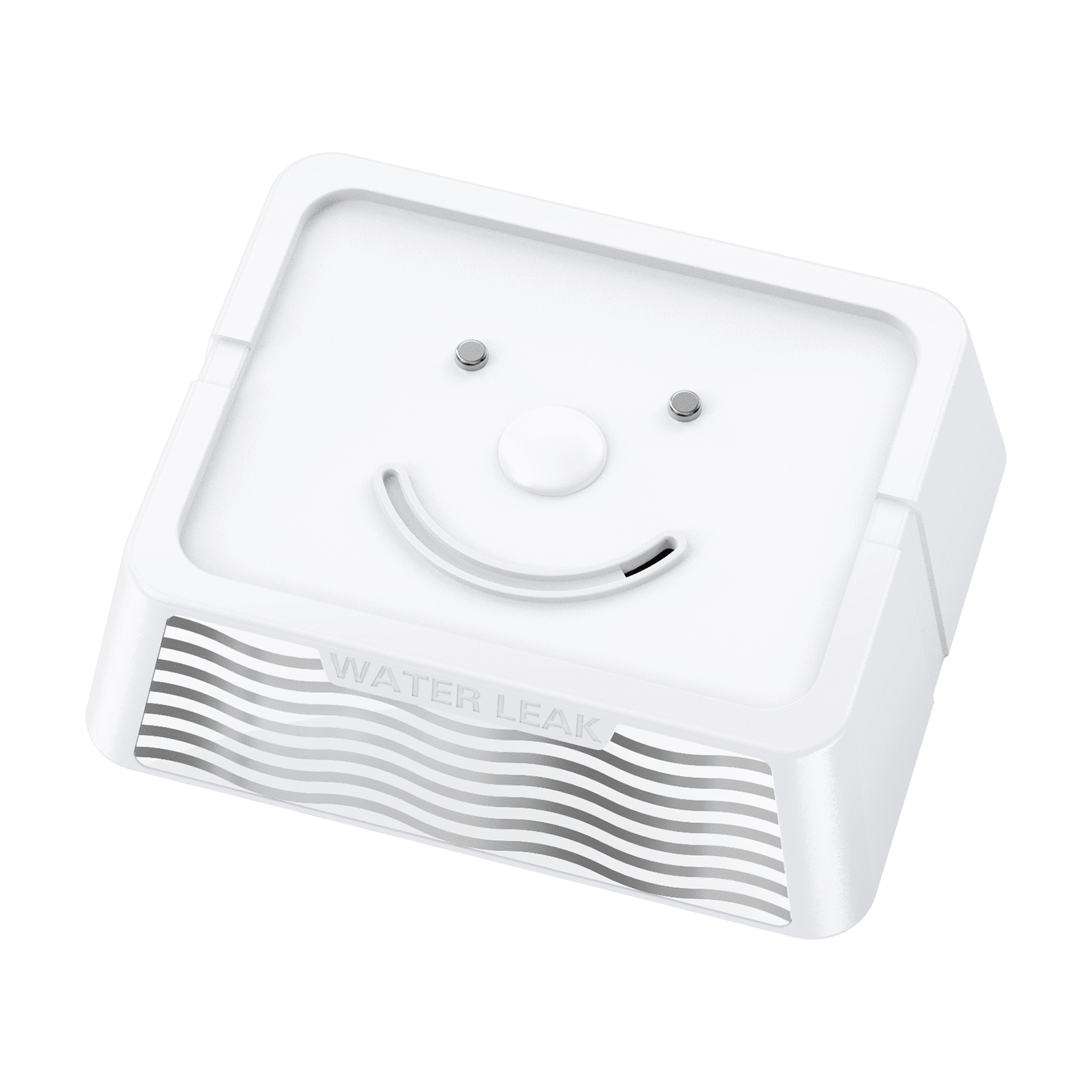
LW1
Scan its Setup QR code; Bluetooth discovery is not supported.
LD1
Door and window sensor; requires an online LoRa Hub.
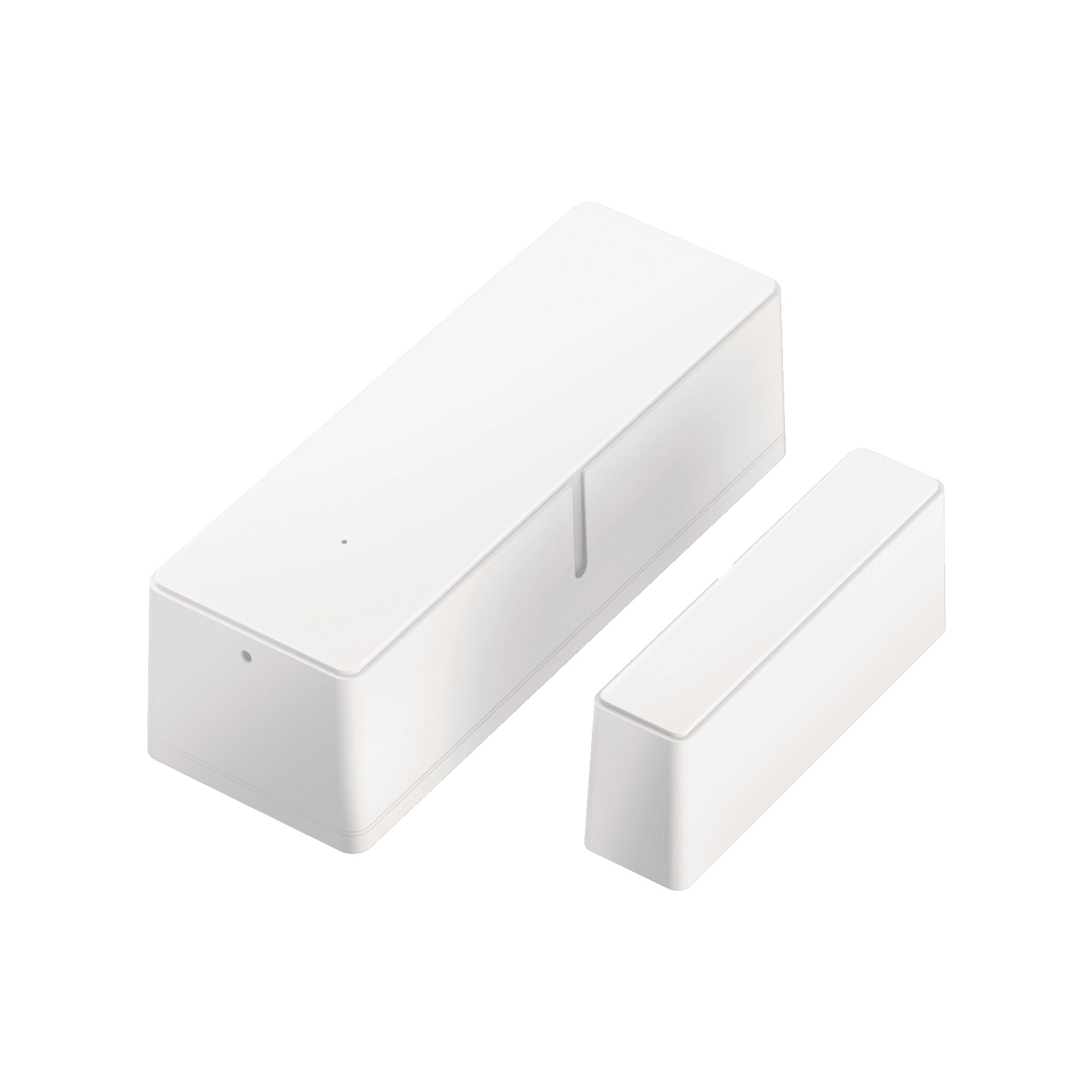
LB1
Strobe siren; requires an online LoRa Hub before addition.