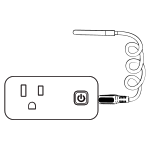
Add Devices in the App
Contact SupportChoose the exact MOCREO Sensor System model, follow its correct addition method, then install and verify the device.
Install the MOCREO Sensor App and sign in before adding devices. Choose the exact model below because Zigbee, Hub Bluetooth, local Bluetooth, and local controller devices use different addition methods.
App Download & Installation
Install the MOCREO Sensor App, register an account, and sign in.
Choose Your Hub
H1B Hub
Connect the Hub through Ethernet or 2.4 GHz Wi-Fi, then place it for reliable sensor coverage.
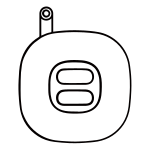
H2 Hub
Connect the wall-plug Hub to 2.4 GHz Wi-Fi, then choose an outlet with reliable coverage.
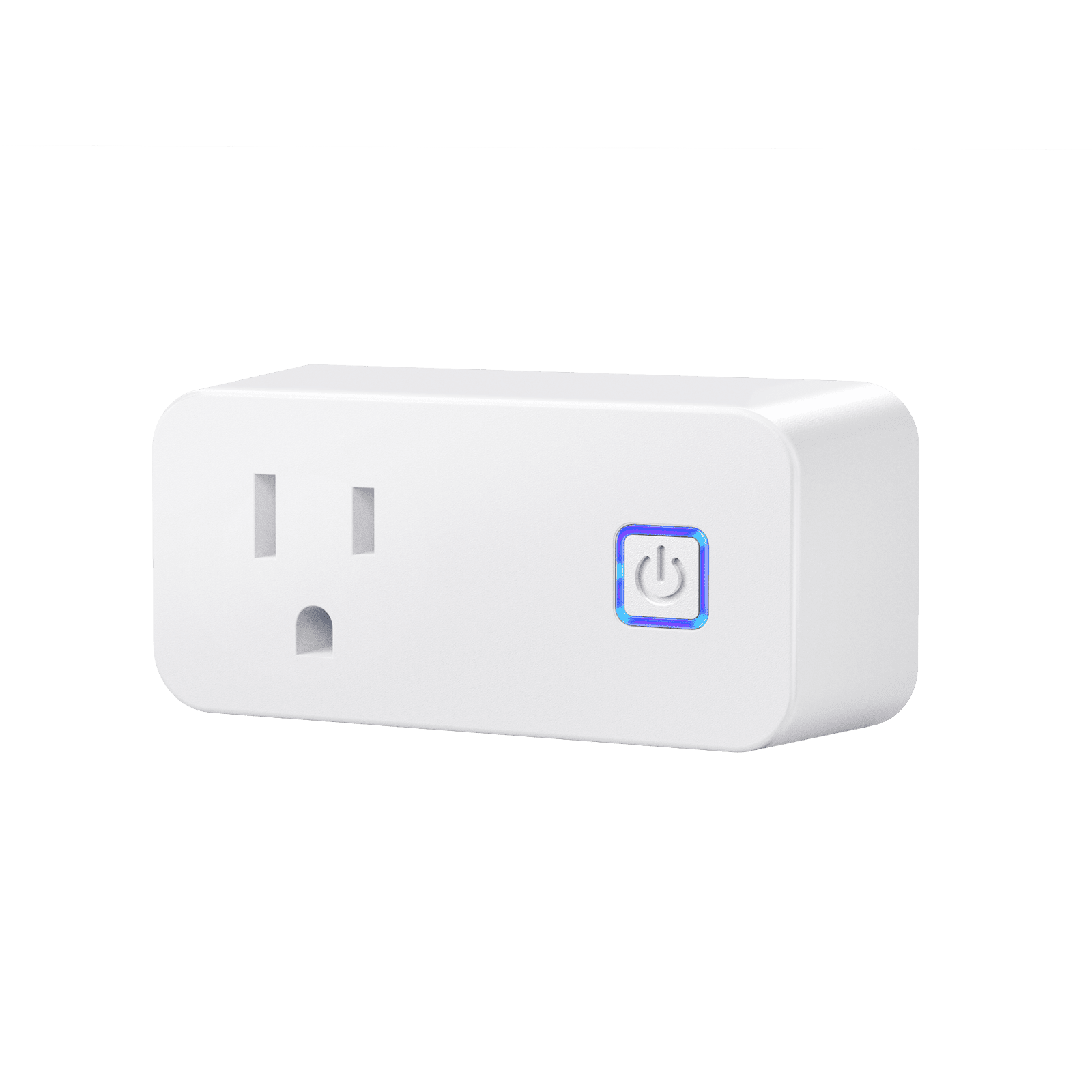
Zigbee Sensors
ST3 and ST4 require an online H1B Hub and use the Zigbee binding flow.
ST3
Add the Zigbee temperature and humidity sensor through H1B binding mode.
ST4
Add the Zigbee temperature sensor through H1B binding mode.
Hub-connected Bluetooth Sensors
These models require an online H1B or H2 Hub. The phone uses Bluetooth during addition.
ST5
Add and deploy the external-probe temperature sensor.
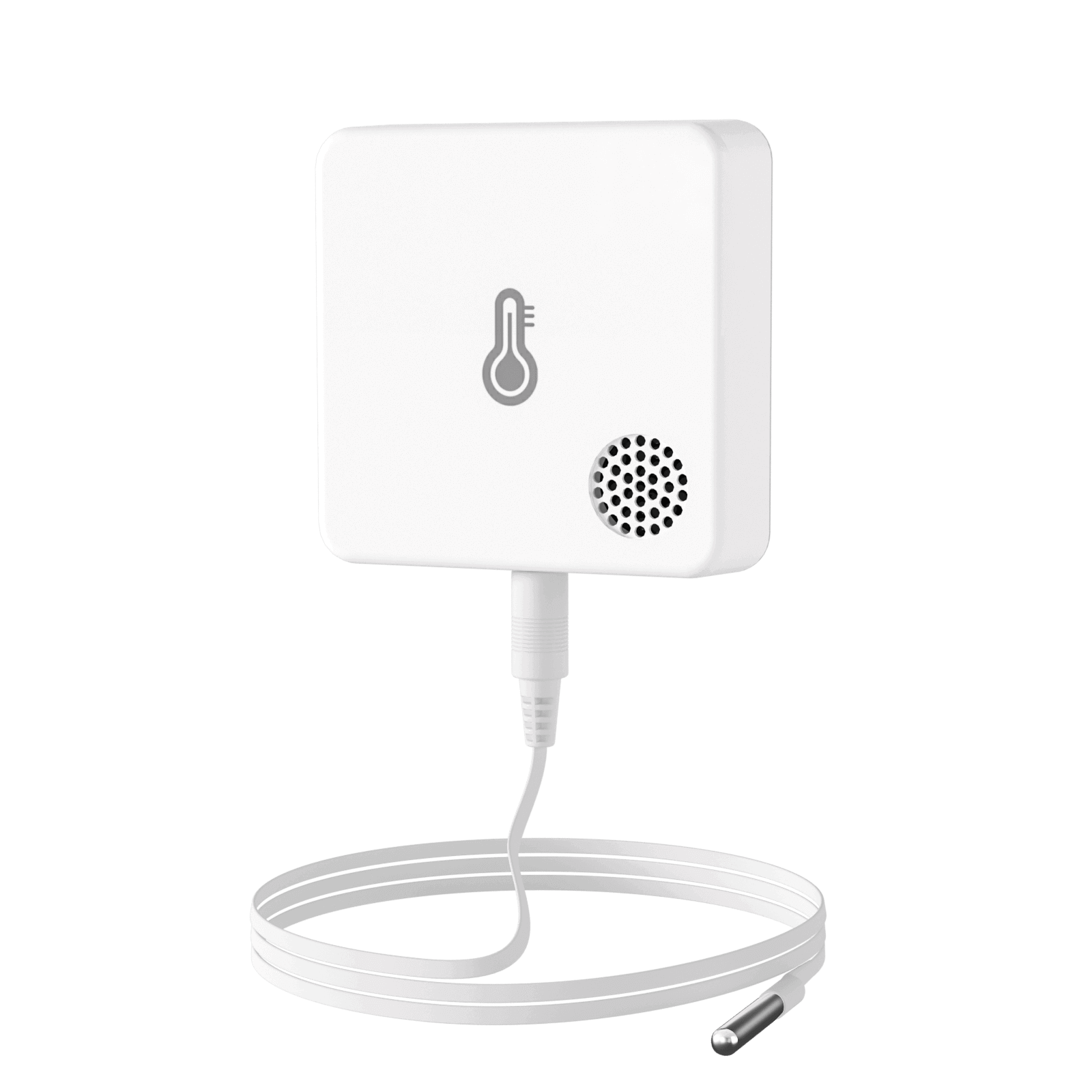
ST6
Add and deploy the ambient temperature and humidity sensor.
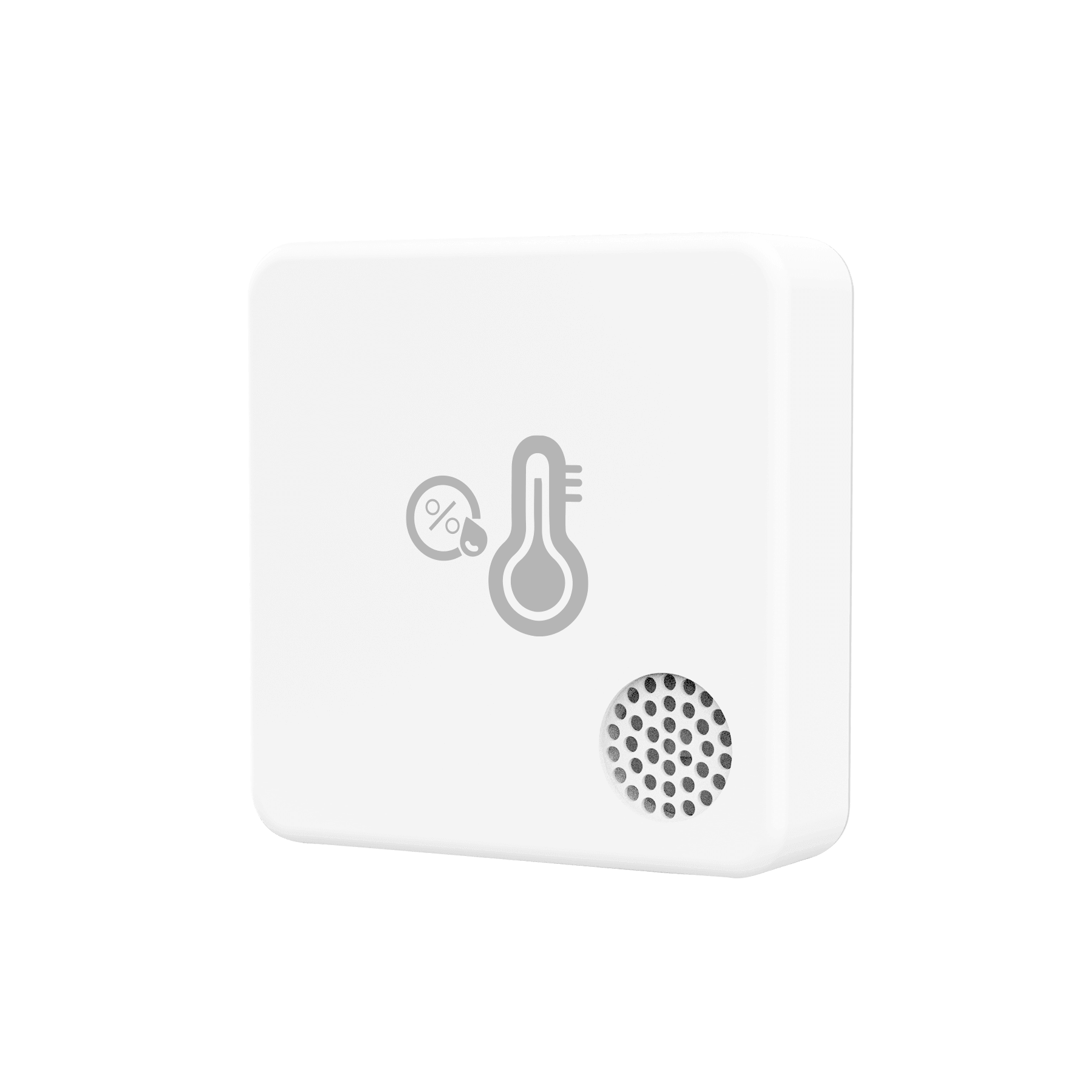
ST9
Add and deploy the external-probe climate sensor.
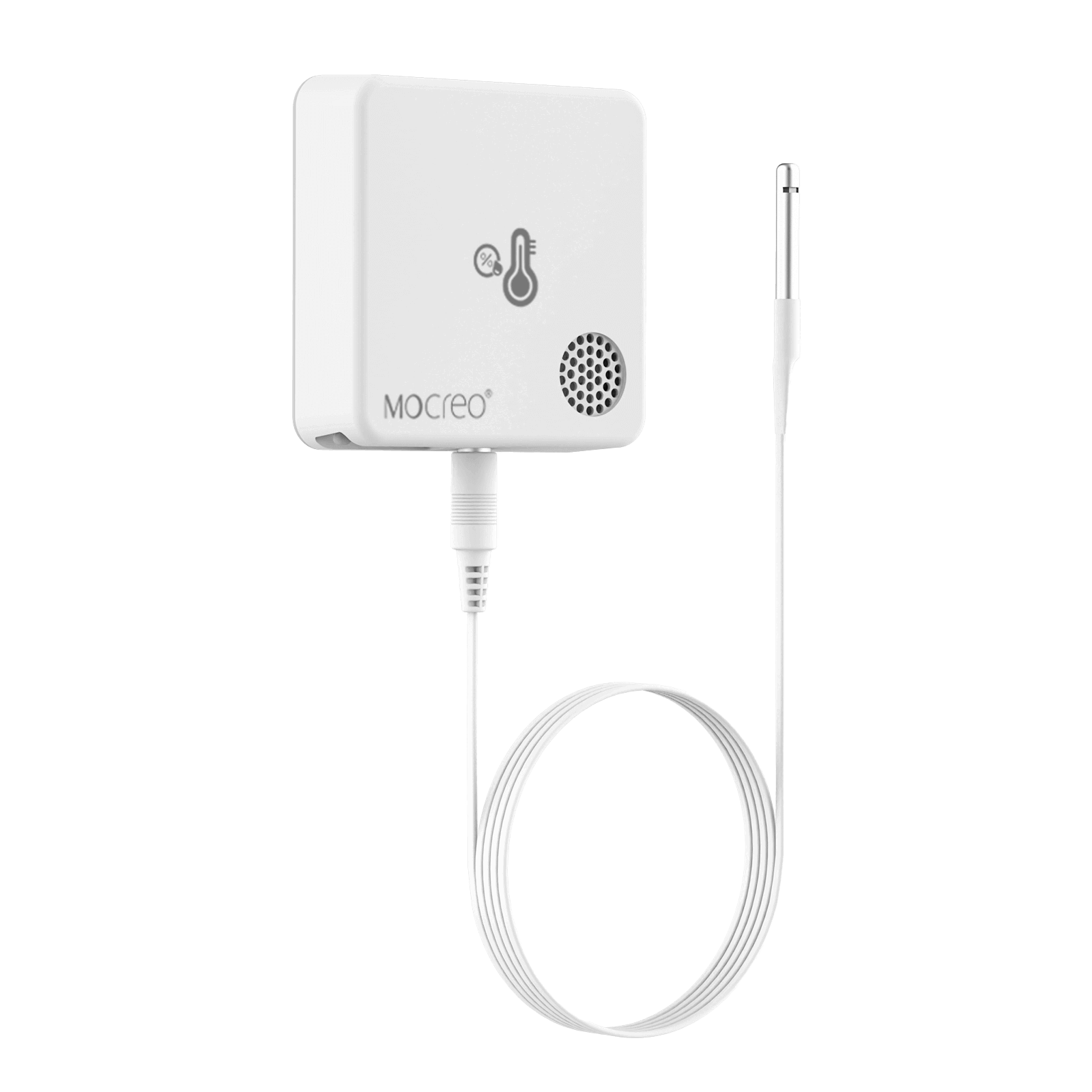
ST10
Add and deploy the ultra-low-temperature sensor.
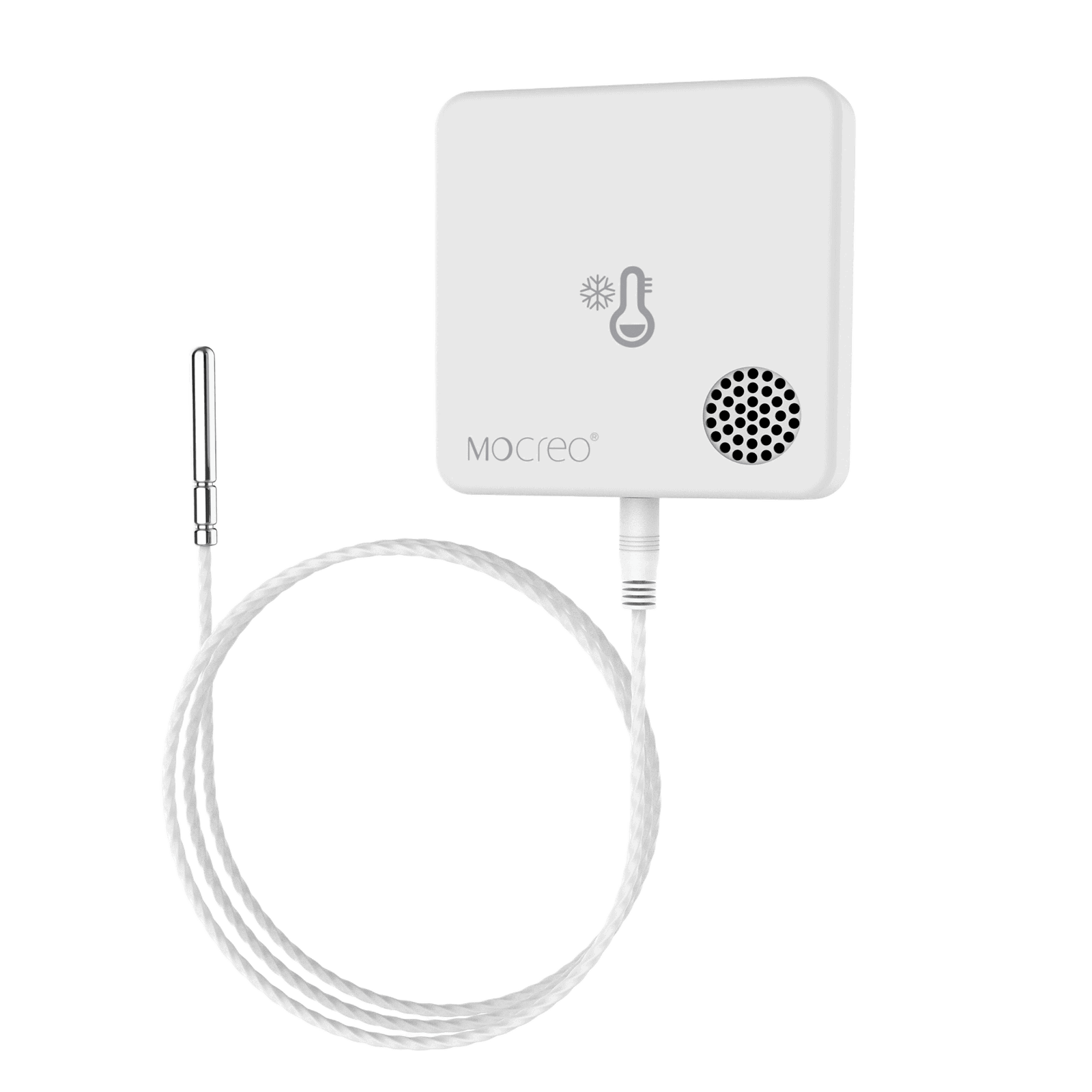
SW2
Add and deploy the water leak sensor and detection probe.
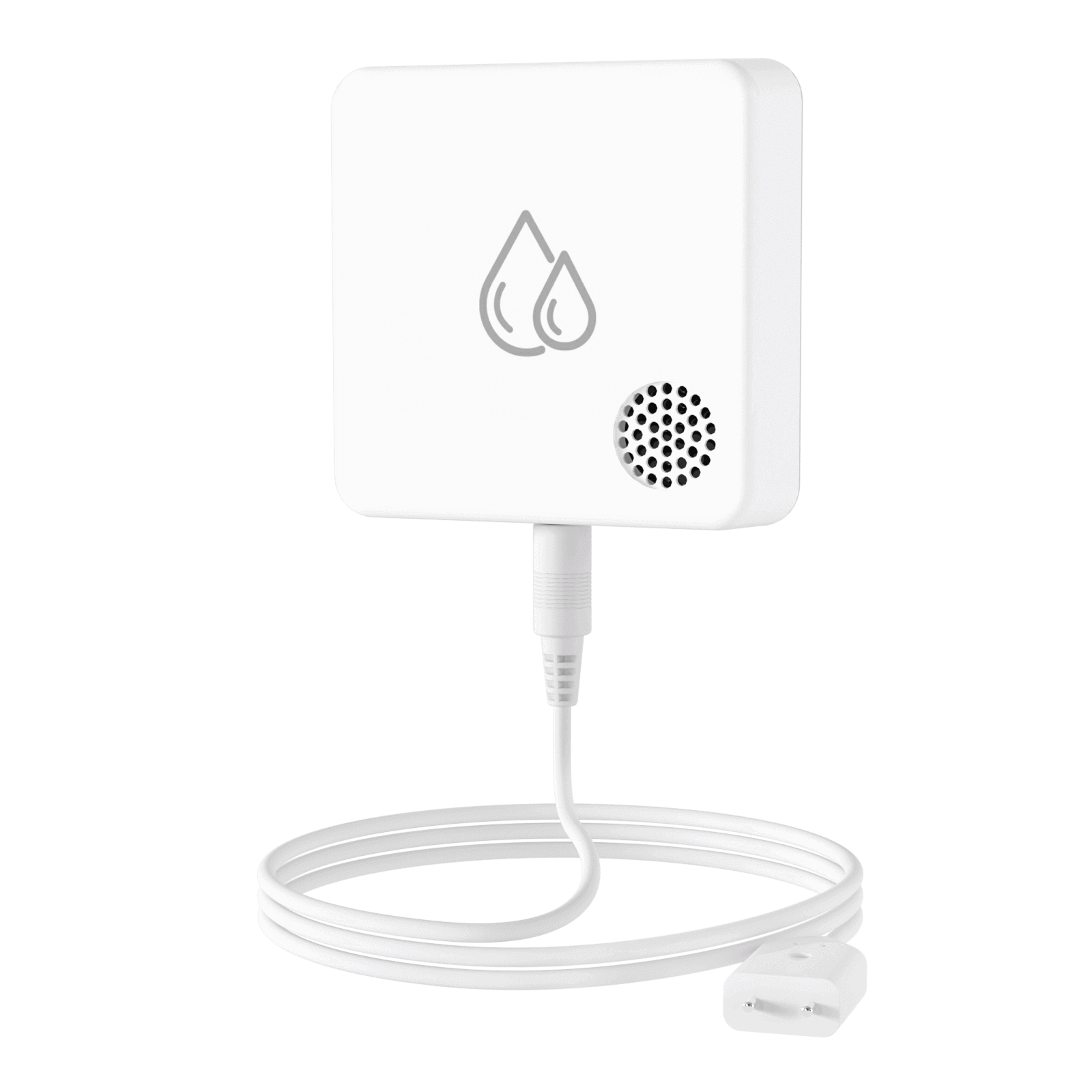
MS1
Put MS1 into Setup mode, then add it through an online Hub.
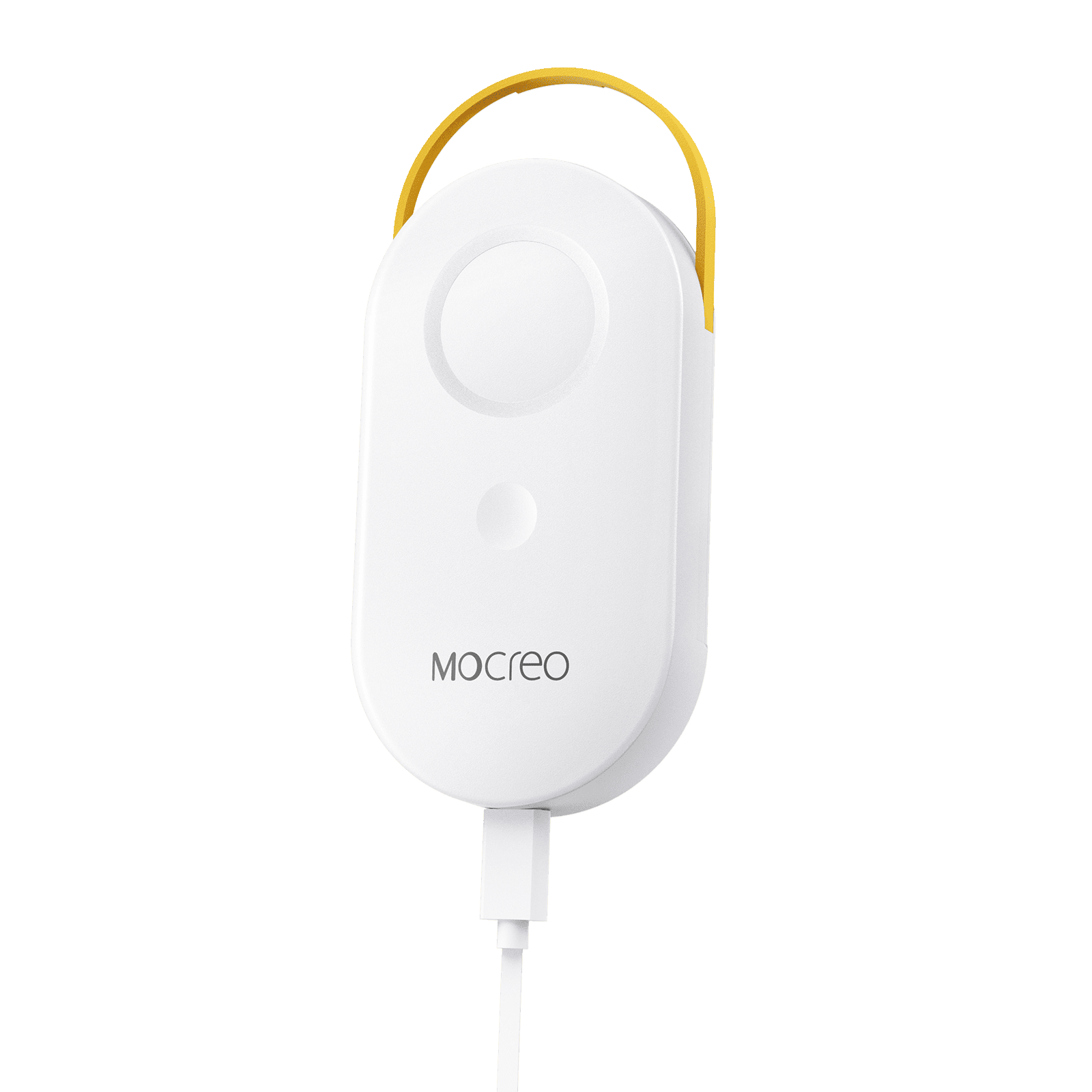
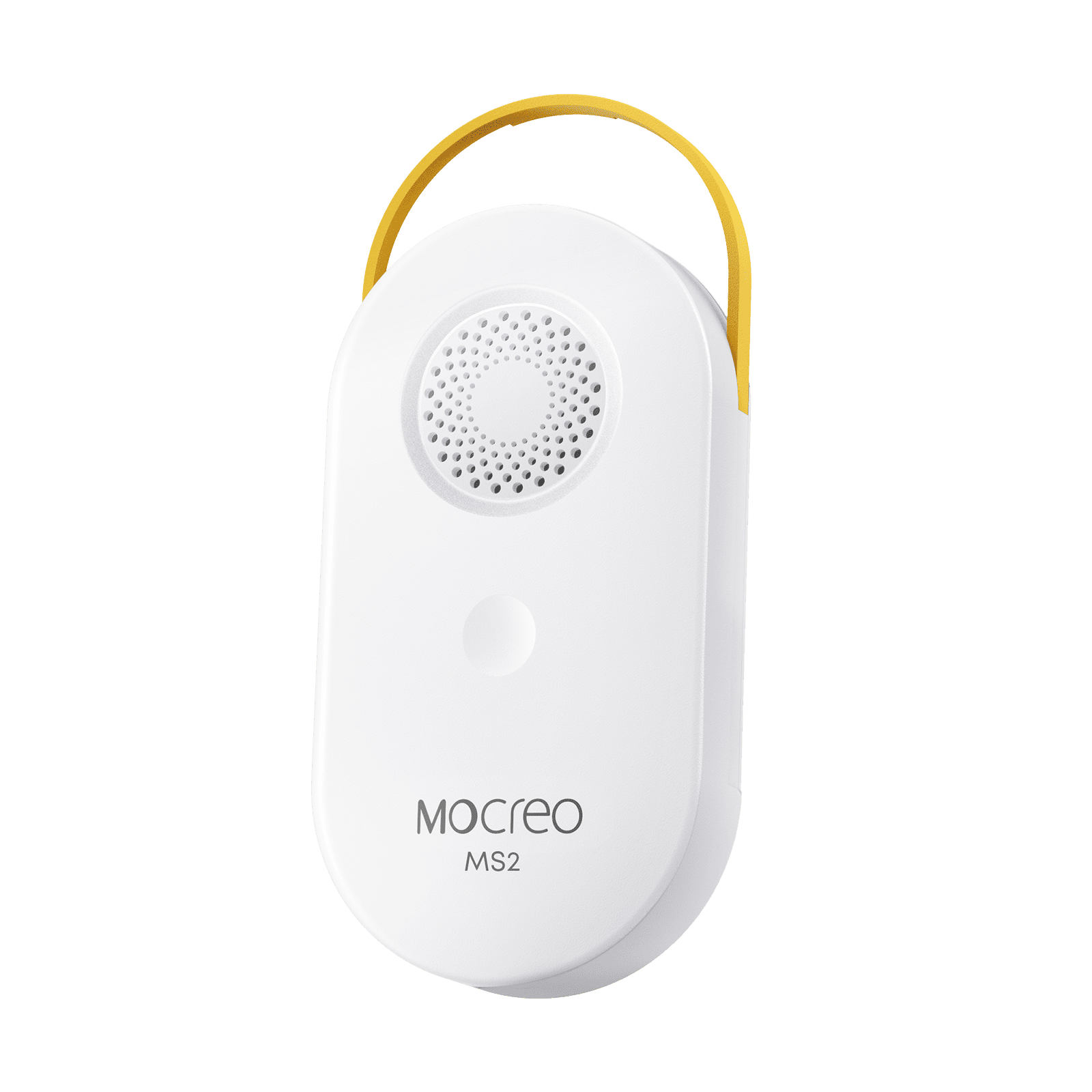
MS2
Pull the battery tab, put MS2 into Setup mode, then add it through an online Hub.
Local Bluetooth Sensors
ST7 and ST8 connect directly to a nearby phone without a Hub.
ST7
Add the local temperature sensor and keep the phone within Bluetooth range.
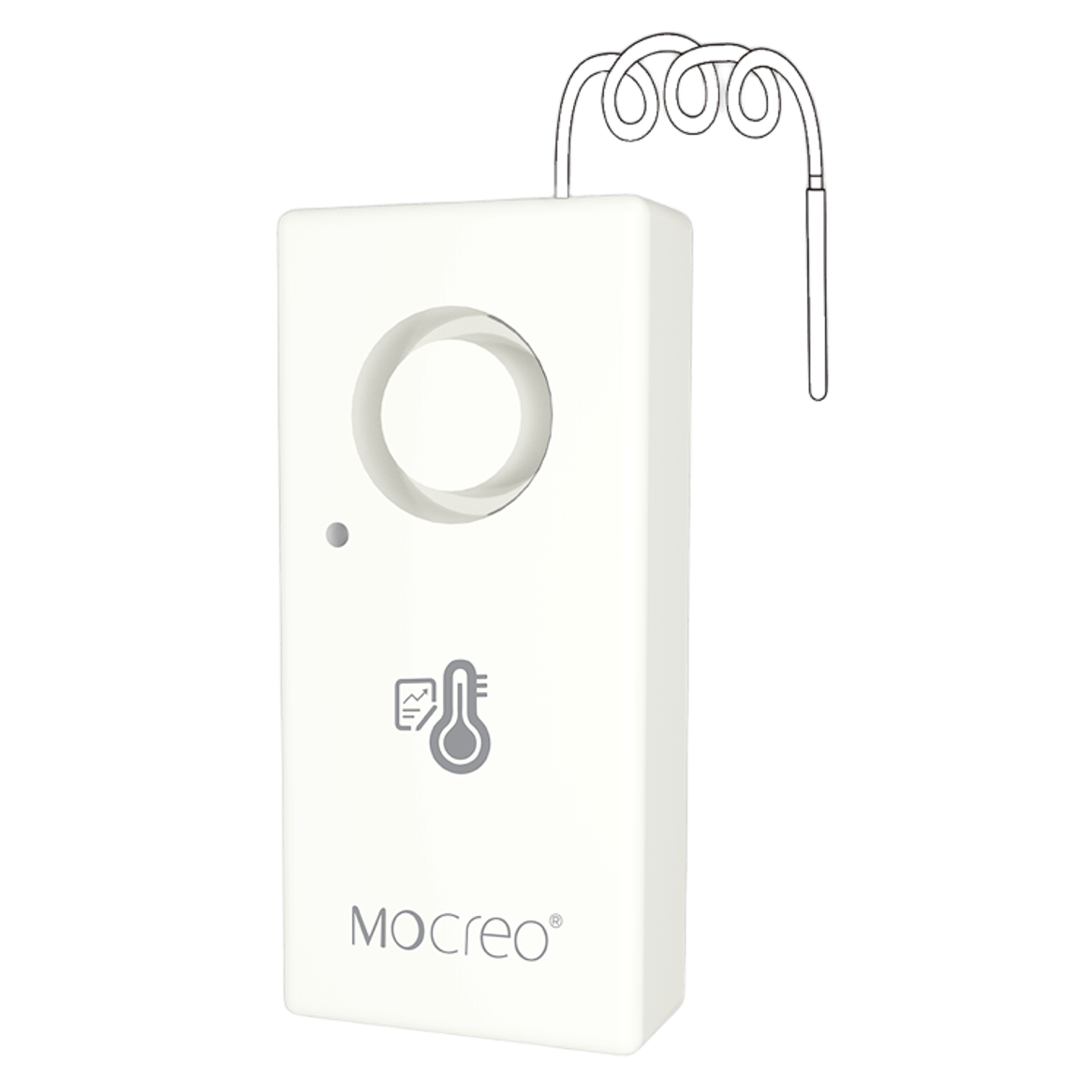
ST8
Add the local data logger and synchronize stored readings nearby.
Local Controllers
NM1 and ST7-CL do not use a MOCREO Hub.