LS2
LS2's addition and installation deployment.
- Here, you can find guidance on the addition and installation deployment of LS2. Before reading the following article, please ensure that you have completed the Hub setup process.
What should I prepare?
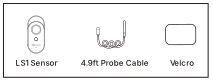
How to set it up?
Before actual deployment, we recommend prioritizing the LS2 Sensor Setup process, which involves adding the sensor via the MOCREO Smart App.
Before adding the LS2 Sensor, please ensure you have completed the H5Pro or H6-Pro Hub setup process.
Add LS2 Sensor
- Open the MOCREO Smart App.
- Tap + and select Scan.
- Scan the QR code on the LS2 Sensor label and follow the in-app instructions.
Note: For new-version LS2 Sensors, QR code scanning is the only supported entry for adding or re-adding the sensor. New-version LS2 Sensors do not include a Bluetooth chip and do not support press-and-hold button operations for entering setup mode or performing a factory reset.
If you scan the QR code on an older LS2 Sensor, the App may route you to the legacy setup flow. This is expected for older hardware versions.
How to mount it?
-
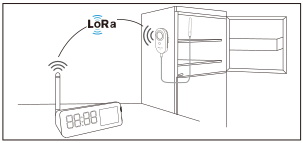
We recommend positioning the LS2 Sensor vertically to maximize communication stability between the active LoRa Hub and the Sensor.
-
In an open, line-of-sight environment, the effective communication range between the Hub and LS2 Sensor can reach up to 2000 ft (610 m).